
- 24 September, 2026
- Data Engineers
- 0 Comments
- 27 Views
- Blog
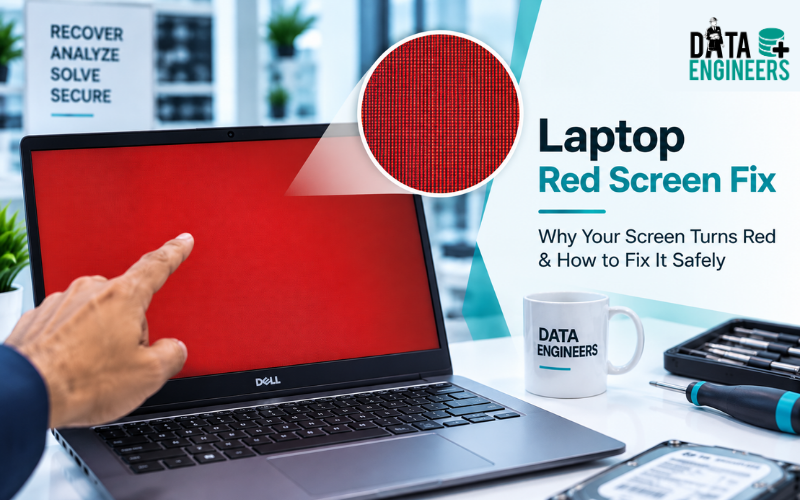
Laptop Red Screen Fix: Why Your Screen Turns Red & How to Fix It Safely
A red screen in laptop displays can be worrying, especially when the entire screen suddenly changes color, develops a red tint, flickers or becomes difficult to read.
But a laptop red screen does not always mean that the display is permanently damaged.
Sometimes the cause is a simple Windows setting such as Night light or a color filter. In other cases, the problem may involve the graphics driver, GPU, display cable, LCD panel, backlight or another hardware component.
There is also a different situation commonly called the Red Screen of Death. This phrase is used online for severe system crashes, but a red-tinted display and a genuine system failure are not necessarily the same problem.
So the first step isn’t replacing the screen or reinstalling Windows.
The first step is finding out when the red color appears and whether the laptop is still working normally.
Quick Answer: Why Is My Laptop Screen Red?
The most common reasons a laptop screen looks red include:
- Windows Night light
- Color filters
- Incorrect color settings
- HDR or color-profile settings
- Outdated or corrupted graphics drivers
- GPU problems
- Loose display or ribbon cable
- Failing LCD panel
- Backlight problems
- Liquid or physical damage
If the red tint appears only after Windows starts, software or display settings are worth checking first.
If the red screen appears on the manufacturer logo or BIOS/startup screen, hardware becomes more likely.
Microsoft’s Windows guidance also identifies display settings and graphics-driver issues as areas to check when diagnosing display problems.
The 30-Second Test That Can Tell You a Lot
Before trying complicated solutions, ask:
Does the red screen appear before Windows loads?
Restart the laptop and watch the manufacturer’s logo or BIOS/startup screen.
If the screen is normal during startup
But turns red after Windows loads, investigate:
- Display settings
- Night light
- Color filters
- HDR
- Graphics drivers
- Windows configuration
If the screen is already red during startup
A hardware problem becomes more likely.
Possible causes include:
- LCD panel
- Display cable
- Display connector
- GPU
- Motherboard
- Internal display circuitry
This simple observation can prevent you from wasting time on the wrong solution.
Why Does My Laptop Screen Look Red?
1. Night Light Is Turned On
Windows Night light changes the display’s color temperature to reduce blue light.
Depending on the settings and display, the screen can appear noticeably warm or reddish.
Go to:
Settings → System → Display → Night light
Turn it off temporarily and check the display.
2. Color Filters Are Enabled
Windows includes accessibility color filters that can change how colors appear.
Check:
Settings → Accessibility → Color filters
If a filter has been enabled accidentally, turn it off and check whether the display returns to normal.
3. HDR or Color Settings Are Causing the Problem
Incorrect HDR or color-profile settings can sometimes make colors appear abnormal.
If your laptop supports HDR, check:
Settings → System → Display → HDR
If the problem started immediately after changing display settings, reverting those changes may solve the issue.
How to Fix Red Screen on Laptop
Start with simple, low-risk troubleshooting.
Fix 1: Restart Your Laptop
A temporary graphics or Windows problem can sometimes disappear after a restart.
Restart normally and check whether the red display returns.
If it does, continue troubleshooting rather than repeatedly restarting the machine.
Fix 2: Reset the Graphics Driver
On Windows, press:
Windows + Ctrl + Shift + B
This shortcut resets the graphics driver. The screen may briefly flicker while Windows refreshes the graphics subsystem.
If the display immediately returns to normal, the problem may have been related to the graphics driver rather than the LCD panel. Microsoft’s troubleshooting guidance includes this shortcut for display problems.
Fix 3: Update or Roll Back the Display Driver
An outdated, corrupted or incompatible graphics driver can cause:
- Red tint
- Screen flickering
- Distorted colors
- Display artifacts
- Black screen
- Random display problems
Open:
Device Manager → Display adapters
Depending on when the issue started, you may need to update the driver or roll back a recently installed driver.
Avoid downloading random drivers from unofficial websites. Use your laptop manufacturer’s official support page or Windows Update where appropriate.
If the display problem develops into a startup or boot problem, you can also read our guide on Boot Failure on Laptop or Desktop Device: How to Diagnose and Recover Your Data Safely.
Fix 4: Connect an External Monitor
This is one of the most useful tests for a laptop display problem.
Connect your laptop to an external monitor or television.
External monitor looks normal
If the external screen displays normal colors while the laptop’s built-in screen remains red, the internal display path becomes more suspicious.
Potential causes include:
- LCD panel
- Display cable
- Backlight
- Display connector
Both screens look red
If the external display shows the same problem, investigate:
- Graphics driver
- GPU
- Windows configuration
- Graphics hardware
This test doesn’t provide a final diagnosis, but it helps narrow down the cause.
Fix 5: Check the Laptop Display Cable
A damaged or loose internal display ribbon cable can cause:
- Red tint
- Flickering
- Horizontal lines
- Vertical lines
- Intermittent display
- Different colors when the laptop lid moves
If the screen changes when you move the lid, the display cable or panel may need professional inspection.
Don’t repeatedly bend or move the lid to reproduce the problem.
If the cable is already damaged, repeated movement can make the problem worse.
Why Is My Laptop Screen Red Before Windows Starts?
This is an important diagnostic clue.
If the laptop red screen appears on the manufacturer’s logo, BIOS or startup screen, Windows color settings are less likely to be the only cause.
Hardware becomes more suspicious.
Possible hardware causes include:
- Failing LCD panel
- Damaged display cable
- GPU problem
- Display connector issue
- Motherboard fault
- Liquid damage
- Electrical damage
However, the startup symptom alone cannot identify the exact failed component. A proper diagnosis is required.
Red Tint vs Red Screen of Death
These two problems are often mixed together online.
Red Tint
The laptop continues working, but colors appear reddish.
This can be caused by:
- Night light
- Color filters
- HDR
- Graphics settings
- Driver problems
- Display hardware
Red Screen of Death
The computer may become:
- Frozen
- Unresponsive
- Unable to boot normally
- Completely unstable
The term Red Screen of Death is commonly used to describe severe crash-like behavior, but the exact cause depends on the operating system and hardware.
So don’t assume that every red display is a system crash.
Can a Graphics Driver Cause a Red Screen?
Yes.
Graphics-driver problems can produce unusual colors, flickering, distorted images and other display abnormalities.
A driver problem becomes more likely when:
- The problem began after an update.
- The screen is normal during startup.
- Windows loads and then the red tint appears.
- An external monitor also shows the problem.
- Resetting the graphics driver temporarily fixes the display.
If the issue continues after driver troubleshooting, investigate the hardware side.
Can a Loose Display Cable Cause a Red Screen?
Yes.
A loose or damaged display cable can interfere with the signal between the motherboard and the LCD panel.
Typical symptoms can include:
- Red or pink tint
- Flickering
- Lines across the screen
- Intermittent black screen
- Display changing when the lid moves
If this happens, professional inspection is safer than repeatedly opening and reconnecting internal components without the correct tools or experience.
Can a Red Screen Mean My Laptop Is Dying?
Not necessarily.
A red screen by itself does not prove that your laptop is failing.
For example, a simple Night light setting can make the screen appear red even though the hardware is completely healthy.
However, if the red display is accompanied by:
- Random shutdowns
- Severe flickering
- Lines or artifacts
- Overheating
- Startup problems
- Liquid damage
- Storage errors
- Repeated crashes
then the laptop should be diagnosed properly.
For broader professional recovery support, you can explore the Data Engineers Data Recovery Services available for HDD, SSD and other storage-related failures.
What If the Red Screen Appeared After a Drop or Liquid Spill?
Treat this as a potential hardware problem.
If the laptop was dropped or exposed to liquid:
- Stop unnecessary testing and repeated power attempts.
- Liquid and physical damage can affect the display, motherboard, connectors, GPU and storage.
- If important files are stored on the laptop, protecting the data should be a priority.
For physically damaged storage, see our guide on How To Recover Data From a Physically Damaged Hard Drive.
Can You Recover Data From a Laptop With a Red Screen?
Yes, in many situations the data can still be accessible.
A failed display does not automatically mean that your files have been deleted.
For example, if the LCD panel has failed but the internal SSD or hard drive remains healthy, the data may still be intact.
The situation becomes more complicated when the red-screen problem is associated with:
- SSD failure
- Hard drive failure
- Motherboard damage
- Liquid damage
- File-system corruption
- Severe electrical damage
- Startup failure
In such cases, laptop data recovery may be required in addition to hardware diagnosis.
If your laptop uses an SSD, our dedicated SSD Data Recovery service covers SSD-related recovery cases.
Red Screen + Important Data? Do This First
If your laptop contains important documents, photographs, business data or other irreplaceable files, don’t immediately start experimenting with major repairs.
Avoid:
- Formatting the drive
- Initializing a drive
- Reinstalling Windows unnecessarily
- Repeatedly forcing the laptop to start
- Running random recovery programs
- Opening the storage device yourself
If Windows suddenly says that a drive needs to be formatted, don’t click Format if you need the files.
If the laptop has suffered physical or liquid damage, professional evaluation is especially important.
You can also learn more from our guide: Laptop Hard Drive Data Recovery: How to Recover Lost Files from Your Laptop.
When Do You Need Professional Data Recovery?
Consider professional data recovery services if:
- The laptop won’t boot.
- The SSD or hard drive isn’t detected.
- Windows reports the drive as RAW or unformatted.
- Important files have suddenly disappeared.
- The laptop suffered liquid damage.
- The motherboard has failed.
- Previous recovery attempts didn’t work.
- You don’t have a verified backup.
The correct recovery method depends on the storage technology and the type of failure.
For cases involving SSD failure or inaccessible SSD storage, see SSD Data Recovery Cost in India 2026: Price Guide & Factors.
Why Choose Data Engineers?
A red screen problem may be a simple display issue. But if the underlying failure affects the storage or motherboard, recovering the data becomes a separate technical challenge.
Data Engineers provides professional laptop data recovery, hard drive recovery, SSD data recovery and damaged-device recovery services across India.
Our services cover cases involving:
- Laptop HDD failure
- SSD failure
- Deleted files
- Formatted drives
- Corrupted storage
- Physically damaged storage
- Liquid-damaged laptops
- Motherboard-related data loss
- Windows corruption
- Emergency data recovery
With professional recovery facilities and secure evidence/data handling procedures, our engineers first assess the condition of the device and then select an appropriate recovery approach.
Data Engineers has been serving customers since 2010, with support available across India.
For customers looking specifically for a professional recovery company in Delhi, you can also read Best Data Recovery in Nehru Place, Delhi.
Final Verdict
A laptop red screen fix depends on what is actually causing the red display.
If the screen only becomes red after Windows loads, start with Night light, Color filters, HDR, display settings and graphics drivers.
If the red color appears on the BIOS or manufacturer logo or the display changes when the lid moves, investigate the hardware.
And if your laptop contains important files, remember:
A red screen does not automatically mean your data is lost.
The display, motherboard and storage are different parts of the system. Even when the screen stops working, your files may still be recoverable.
If your laptop has developed a serious hardware or storage problem and the data is important, avoid unnecessary formatting, reinstallation or recovery attempts and get the device professionally assessed.
Need Professional Laptop Data Recovery?
Data Engineers
Phone: +91-9818567981
Email: support@dataengineers.in
Website: www.dataengineers.in
For laptop data recovery, SSD recovery, hard drive recovery or data recovery after hardware failure, contact Data Engineers for professional assistance.
Related Data Recovery Guides
For readers who want to learn more about laptop and storage recovery:
- Laptop Hard Drive Data Recovery: How to Recover Lost Files from Your Laptop
- Boot Failure on Laptop or Desktop Device: How to Diagnose and Recover Your Data Safely
- Deleted Files from SSD? Why You Must Stop Using It Immediately
- Hard Drive Data Recovery Cost in India (2026)
- How To Recover Data From a Physically Damaged Hard Drive
- Hard Drive Corrupted File Recovery
Frequently Asked Questions (FAQs)
How do I fix a red screen on my laptop?
Start by checking Night light, Color filters, HDR and other display settings. Then reset or troubleshoot the graphics driver and test the laptop with an external monitor. If the red color appears during BIOS or startup, hardware inspection may be necessary.
Start by checking Night light, Color filters, HDR and other display settings. Then reset or troubleshoot the graphics driver and test the laptop with an external monitor. If the red color appears during BIOS or startup, hardware inspection may be necessary.
Why does my laptop screen look red?
The most common causes include incorrect color settings, Night light, color filters, graphics-driver problems, a damaged display cable, a failing LCD panel, GPU problems or physical damage.
Why is my laptop screen red but everything else works?
If the laptop is responsive and only the display looks red, the issue may be limited to display settings, the graphics driver or the internal display hardware.
How do I fix a red screen of death?
First determine whether you have a true crash or simply a red-tinted display. For a normal red tint, check Windows display settings and drivers. If the laptop is frozen or repeatedly crashes, deeper system or hardware diagnosis may be required.
Can a loose cable cause a red screen?
Yes. A damaged or loose display ribbon cable can cause abnormal colors, flickering, lines or intermittent display problems.
Can a graphics driver cause a red screen?
Yes. A corrupted, incompatible or outdated graphics driver can cause unusual colors and other display problems. Updating or rolling back the driver may help.

Worldwide Leader in Data Recovery

Professional Expertise with Long Term Experience
DATA ENGINEERS
011-26426316 | +91-9910132719 | +91-9818567981
support@dataengineers.in
Call us for a free advice.
Specialists at retrieving data from all types of hard drive and phone storage media, today Data Engineers has grown into the India’s largest and most technically capable data recovery company.


Leave a Comment