
- 6 October, 2026
- Data Engineers
- 0 Comments
- 22 Views
- Blog
Data Error: Cyclic Redundancy Check — What It Means and How to Recover Your Files
Seeing “Data Error: Cyclic Redundancy Check” while opening, copying, moving or accessing files can be alarming. You may still see the drive in Windows, but suddenly a folder will not open or a file refuses to copy.
So, what does a cyclic redundancy check error actually mean?
A CRC error means your computer could not verify that data was read or transferred correctly. The cause may be something relatively simple, such as a damaged USB cable or something more serious, such as bad sectors, file-system corruption or a failing hard drive.
If the drive contains important files, the safest approach is to protect the data before attempting repairs.
What Is Data Error: Cyclic Redundancy Check?
A cyclic redundancy check (CRC) is an error-detection method used by computers and storage systems to check whether data has been read or transferred correctly.
In simple terms, your computer expects the data it receives to match a calculated value. When the result does not match, Windows may display:
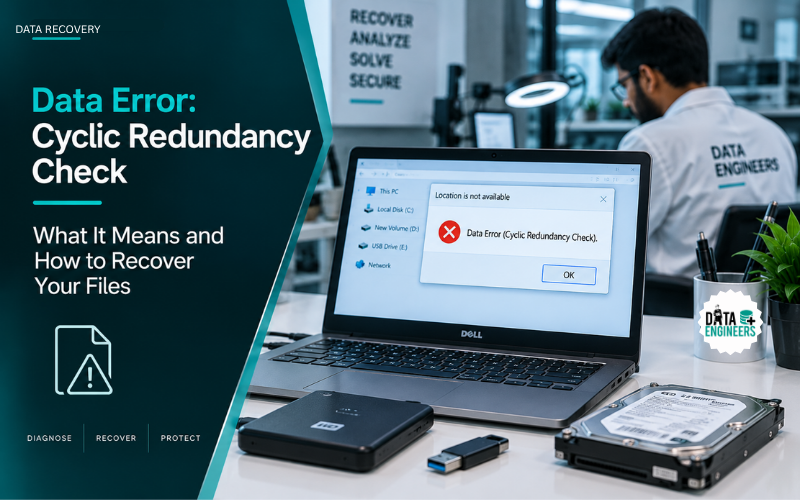
“Data error (cyclic redundancy check).”
You may encounter the error while:
- Copying files from a hard drive
- Opening an external hard drive
- Moving large folders
- Accessing a damaged partition
- Initializing a disk
- Installing or extracting files
- Reading an old HDD or SSD
- Accessing a USB storage device
Other related messages can include:
- Location is not available
- Drive is not accessible
- Cannot copy file: Data error (cyclic redundancy check)
- DiskPart has encountered an error
- Virtual Disk Manager: Data error (cyclic redundancy check)
A CRC error does not automatically mean that all data is lost.
However, repeated CRC errors on the same storage device should not be ignored because they can indicate a deeper problem with the drive or its connection.
If your drive is also becoming slow, disconnecting or producing unusual sounds, treat the situation more seriously and consider professional hard disk data recovery before performing repairs.
What Causes a Cyclic Redundancy Check Error?
A CRC error can have several causes. Identifying the cause is important because the safest solution depends on whether the problem is with the connection, file system or physical storage media.
1. Bad Sectors on the Hard Drive
One of the most common concerns is bad sectors.
A bad sector is an area of the storage device that cannot reliably store or return data. When Windows tries to read information from a damaged area, the operation may fail and result in a CRC error.
You may notice:
- Files taking unusually long to open
- Certain folders becoming inaccessible
- Copying stopping at the same point
- Windows freezing while reading the drive
- Very slow hard-drive performance
- Repeated read errors
If bad sectors are increasing, the drive may be deteriorating.
For serious physical HDD problems, see our guide on recovering data from a physically damaged hard drive.
2. Failing Hard Drive
An aging HDD can develop mechanical or media-related problems.
A CRC error hard drive situation is particularly concerning when the error is accompanied by:
- Clicking or grinding sounds
- Frequent disconnections
- Extremely slow read speeds
- Missing files
- Files that suddenly stop opening
- Incorrect drive capacity
- The drive disappearing from Windows
A hard drive does not necessarily fail all at once. Sometimes the first signs are intermittent read errors and increasingly difficult file access.
3. Faulty USB or SATA Cable
Not every cyclic redundancy check error originates inside the drive.
A damaged USB cable, loose SATA connection, unreliable USB port or insufficient power can interrupt communication between your computer and storage device.
For an external hard drive, try:
- Another USB port
- A known-good USB cable
- Another computer
- A direct connection instead of a USB hub
If the problem disappears, the cable or connection may have been the cause.
4. File-System Corruption
The physical storage media may still be healthy while the file system has become corrupted.
This can happen after:
- Sudden power loss
- Unsafe removal
- System crashes
- Interrupted file transfers
- Failed formatting
- Operating-system problems
File-system corruption can make Windows unable to locate or correctly interpret files, resulting in access errors and CRC-related messages.
If you are dealing with broader file corruption, our corrupted files data recovery service may be relevant.
5. Interrupted File Transfers
Sometimes the problem is limited to one particular file.
For example, if you receive a CRC error while extracting a ZIP or RAR archive, the archive itself may be incomplete or corrupted.
If other files on the drive work normally, download or copy the original archive again before assuming that the entire storage device has failed.
Is a CRC Error a Sign of Hard Drive Failure?
It can be, but a CRC error does not always mean that the hard drive is failing.
- This is one of the most important things to understand.
- If changing the cable or USB port fixes the problem, the drive itself may be healthy.
On the other hand, if the CRC error keeps returning on different computers and connections, particularly with slow performance, bad sectors, missing files or unusual sounds, the storage device may be developing a serious problem.
A useful rule is:
One isolated CRC error can be a troubleshooting issue. Repeated CRC errors on an important drive should be treated as a potential data-loss warning.
Common CRC Error Messages in Windows
The data error cyclic redundancy check message can appear in several different situations.
CRC Error While Copying Files
You may be able to browse the drive but receive an error when copying a particular file.
This can happen when Windows reaches an unreadable section of the source storage.
CRC Error on an External Hard Drive
An external drive may appear in File Explorer but fail when you try to open it.
You might see:
“Location is not available. Data error (cyclic redundancy check).”
This can result from connection problems, file-system corruption, bad sectors or hardware failure.
CRC Error During Disk Initialization
If Disk Management or DiskPart displays a CRC error while initializing a disk, Windows may be having difficulty communicating with the storage device.
If the disk contains important data, do not initialize it simply because Windows suggests it.
CRC Error While Extracting an Archive
A CRC message during ZIP/RAR extraction may indicate that the archive is damaged.
In that situation, obtaining another copy of the archive may solve the problem.
How to Fix Data Error Cyclic Redundancy Check
There is no single cyclic redundancy check fix that works in every situation.
The correct approach depends on the condition of the drive.
If your files are important, follow the least-invasive steps first.
Step 1: Stop Unnecessary Drive Activity
If the storage device contains important files, avoid repeatedly:
- Opening the same damaged folders
- Copying the same failed files
- Running multiple disk scans
- Formatting the drive
- Initializing the drive
- Installing software onto the affected drive
Your first objective should be data preservation.
Step 2: Check the USB or SATA Connection
For an external hard drive:
- Try another USB port
- Replace the USB cable
- Avoid USB hubs
- Check the power adapter
- Try another computer
For an internal drive, check the SATA data and power connections.
This simple step can sometimes resolve a CRC error caused by an unstable connection.
Step 3: Try Another Computer
Connect the affected storage device to another known-working computer.
If it works normally there, the original computer, port, driver or connection may be involved.
If the CRC error follows the drive, the storage device itself becomes a stronger suspect.
Step 4: Copy Important Accessible Files
If the drive is still accessible and some files open normally, copy the most important files to another healthy storage device.
Do this before experimenting with repair utilities.
Never save recovered files back to the same drive that is showing the CRC error.
Step 5: Check the Drive’s Health
If the drive is still accessible, check its health and watch for signs such as:
- Increasing bad sectors
- Read errors
- Very slow performance
- Frequent disconnections
- Unusual HDD noises
- Repeated CRC errors
If the drive is physically unstable, extensive scanning can place additional stress on it.
Step 6: Use CHKDSK Carefully
One of the most common recommendations for a cyclic redundancy check Windows error is CHKDSK.
CHKDSK can check file-system structures and attempt certain repairs.
But there is an important distinction:
CHKDSK is a file-system repair utility, not a professional data recovery tool.
If the drive is healthy and the problem is logical, CHKDSK may be useful.
If the drive is physically failing and contains the only copy of important files, repair should not automatically be your first step.
A safer approach may be to secure or image the readable data first.
Step 7: Do Not Format the Drive
If Windows asks you to format a drive that suddenly became inaccessible, do not click Format if you need the data.
Formatting can alter important file-system structures and make an already difficult recovery more complicated.
The same applies to initializing a disk that contains important information.
Should You Run CHKDSK for a CRC Error?
Only after considering the condition and importance of the data.
CHKDSK may be reasonable when:
- You have a verified backup
- The drive appears physically healthy
- The problem appears to be logical
- You understand that repair can modify file-system structures
Be much more cautious when:
- The drive contains the only copy of important files
- The HDD is clicking
- The drive is extremely slow
- Files are becoming unreadable
- The drive repeatedly disconnects
- The CRC errors are increasing
- The drive is not detected consistently
A repair command cannot restore information that the storage device can no longer read.
If you are unsure whether the problem is logical or physical, professional assessment is safer than repeatedly running repair commands.
How to Recover Data From a CRC Error Hard Drive
If the basic connection checks do not solve the problem, the next question is:
Can you recover data from a CRC error?
In many cases, yes, data recovery may still be possible.
The recovery method depends on the condition of the storage device.
Logical CRC Problems
If the hardware is healthy but the file system is damaged, recovery may involve analyzing the file-system structures and reconstructing missing information.
Bad-Sector Problems
If certain areas of the drive cannot be read, recovery may require specialized imaging techniques.
The objective is to extract as much readable information as possible without repeatedly stressing the original drive.
Physically Failing HDD
If the drive has mechanical problems, unusual sounds, severe read instability or other physical symptoms, professional recovery may be required.
A typical professional hard drive data recovery process may include:
- Initial assessment
- Drive health and readability analysis
- Controlled imaging or cloning
- Handling unreadable sectors
- File-system analysis
- File extraction
- Recovered-data verification
This is very different from simply installing recovery software and scanning the original failing disk.
For more information, see Data Engineers’ hard disk data recovery service.
When You Need Professional Hard Drive Data Recovery
Consider professional recovery when the CRC error continues and the files are important or irreplaceable.
You should be particularly careful if:
- The HDD makes clicking or grinding sounds
- The drive is not detected correctly
- The drive repeatedly disconnects
- File transfers repeatedly fail
- The drive becomes extremely slow
- Multiple files produce CRC errors
- The partition shows as RAW
- Disk Management shows incorrect capacity
- Initialization fails
- The drive has suffered physical damage
- Important business data exists only on the drive
Data Engineers provides professional data recovery services for HDDs, SSDs, memory cards, servers, RAID systems, NAS/SAN storage and other failed or inaccessible storage devices.
For enterprise environments, you can also explore our server data recovery service and NAS/SAN data recovery service.
If the CRC problem is connected to a RAID array rather than a standalone drive, see our RAID array failure recovery guide before attempting a rebuild.
What Not to Do After a CRC Error
When important files are involved, these mistakes can make recovery more difficult.
Do Not Format the Drive
Formatting should not be your first response to an inaccessible drive.
Do Not Initialize the Disk
If Windows suddenly asks you to initialize a drive containing important data, stop and investigate first.
Do Not Repeatedly Run Repair Utilities
Repeated repair attempts can modify the file system while the underlying problem remains unresolved.
Do Not Save New Data to the Affected Drive
Writing new data can overwrite information you are trying to recover.
Do Not Install Recovery Software on the Problem Drive
Recovery software should not be installed onto the same storage device containing the lost data.
Do Not Ignore Unusual HDD Sounds
Clicking, grinding or repeated spin-up/spin-down behavior can indicate a physical problem.
Do Not Assume “Detected” Means “Healthy”
Windows detecting a hard drive only means that the system can communicate with it at some level.
It does not guarantee that all sectors or files are readable.
How to Prevent Future CRC Errors
Storage failures cannot always be prevented, but good storage practices can reduce the risk of permanent data loss.
Keep Multiple Backups
Important files should never exist in only one location.
Maintain at least one additional copy of critical information on independent storage.
Monitor Aging Hard Drives
Older HDDs should be monitored for changes in performance and reliability.
If a drive becomes unusually slow or repeatedly produces read errors, take action before it completely stops working.
Use Reliable Cables and Power
For external drives, poor-quality cables, unstable power and unreliable USB hubs can contribute to connectivity problems.
Safely Disconnect External Drives
Do not unplug storage while files are being written or transferred.
Take Repeated Errors Seriously
A one-time CRC error on a damaged download is very different from recurring CRC errors across multiple files on an aging hard drive.
The pattern matters.
Conclusion
A data error cyclic redundancy check is not simply another Windows error that should always be fixed with a single command.
It can be caused by something as simple as a bad cable or interrupted transfer. But repeated CRC errors on a hard drive can also point to bad sectors, file-system corruption or a failing storage device.
The safest approach is:
- Stop unnecessary activity.
- Check the connection.
- Back up accessible files.
- Avoid formatting or initializing the drive.
- Be cautious with CHKDSK and other repair tools.
Recover important data before aggressive troubleshooting when drive failure is suspected.
If your HDD, external hard drive, SSD or other storage device is showing “Data Error (Cyclic Redundancy Check)” and the files are important, professional assessment can help determine whether the problem is logical, physical or related to the connection.
Data Engineers provides professional hard drive data recovery in India, including recovery support for customers in Delhi and New Delhi, as well as business storage environments involving servers, RAID, NAS and SAN.
CRC error on your drive? Don’t format it before checking your recovery options.
Frequently Asked Questions (FAQs)
What does data error cyclic redundancy check mean?
A data error cyclic redundancy check means the computer could not verify that data was read or transferred correctly. It may be caused by a connection problem, corrupted data, bad sectors, file-system corruption or a failing storage device.
Is a CRC error a sign of hard drive failure?
It can be. Persistent CRC errors accompanied by slow performance, unreadable files, disconnections, bad sectors or unusual sounds should be treated as possible signs of hard drive failure.
Can a cyclic redundancy check error be fixed?
Sometimes. A faulty cable or logical file-system problem may be fixable. If the storage device has physical damage or failing media, the priority should be recovering the data rather than simply trying to eliminate the error message.
Can I recover data from a CRC error?
Yes, data recovery may be possible. The chances depend on the condition of the storage device, the amount of corruption and whether the affected sectors can still be read.
How do I fix a CRC error on an external hard drive?
Start with the USB cable, USB port, power connection and another computer. If the error continues, investigate the health of the drive. If the files are important, prioritize data recovery before formatting or aggressive repair.
Should I run CHKDSK when I get a CRC error?
CHKDSK may help with certain logical file-system problems, particularly when you already have a reliable backup. If the drive may be physically failing and contains important data, securing the data before repair is generally the safer approach.
Why does my external hard drive say “Data error cyclic redundancy check”?
Windows may be unable to correctly read information from the drive. Possible causes include a faulty cable or connection, bad sectors, file-system corruption or a failing hard drive.

Worldwide Leader in Data Recovery

Professional Expertise with Long Term Experience
DATA ENGINEERS
011-26426316 | +91-9910132719 | +91-9818567981
support@dataengineers.in
Call us for a free advice.
Specialists at retrieving data from all types of hard drive and phone storage media, today Data Engineers has grown into the India’s largest and most technically capable data recovery company.



Leave a Comment