
- 27 July, 2026
- Data Engineers
- 0 Comments
- 175 Views
- Blog
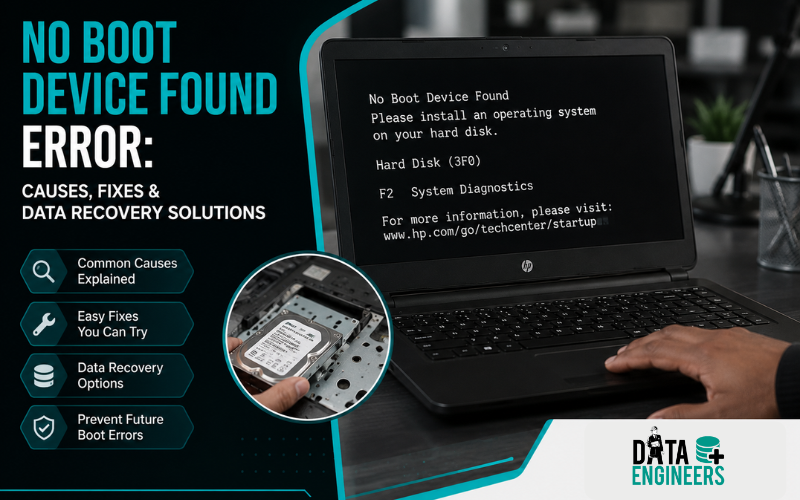
No Boot Device Found Error: Causes, Fixes & Data Recovery Solutions
If your laptop or desktop suddenly displays the “No Boot Device Found” error, it can be alarming. Instead of loading Windows, the system stops at a black screen with a message indicating that it cannot find a bootable device. This doesn’t always mean your hard drive has failed, but it does indicate that your computer cannot locate the files needed to start the operating system.
Whether you’re seeing No Boot Device Found on a Dell laptop, No Bootable Image Found or The System Cannot Find Any Bootable Devices, understanding the cause is the first step toward resolving the issue without risking your valuable data.
In this guide, you’ll learn what causes the error, how the computer boot process works, step-by-step troubleshooting methods and when professional data recovery may be the safest option.
What Does “No Boot Device Found” Mean?
The No Boot Device Found error means that your computer cannot locate a storage device containing a bootable operating system.
Normally, when you press the power button, the computer searches for a bootable drive such as an SSD or hard disk. If it cannot detect the drive or the required boot files are damaged, the startup process stops and displays an error.
Common error messages include:
- No Boot Device Found
- No Bootable Devices Found
- No Bootable Image Found
- The System Cannot Find Any Bootable Devices
- Boot Device Not Found
- Operating System Not Found
Although these messages appear similar, the underlying cause can vary from a simple BIOS setting to a failing SSD or hard drive.
How the Computer Boot Process Works
Understanding the startup process makes it easier to identify where the problem occurs.
The typical boot sequence is:
Power On → BIOS/UEFI → Detect SSD/HDD → Windows Boot Manager → Load Operating System → Windows Desktop
If any step fails, your computer may display a No Boot Device Found error.
For example:
- BIOS cannot detect the SSD.
- Windows Boot Manager is corrupted.
- The EFI partition is damaged.
- The boot configuration is missing.
- The SSD or hard drive has failed.
Identifying which stage has failed helps determine the correct solution.
Common Causes of No Boot Device Found Error
There isn’t a single cause behind this error. In many cases, it’s a combination of hardware and software issues.
1. Incorrect Boot Order
Your BIOS may be trying to boot from the wrong device, such as:
- USB drive
- External hard drive
- Empty DVD drive
- Network boot
If your internal SSD isn’t first in the boot order, Windows won’t start.
2. Corrupted Windows Boot Manager
The Windows Boot Manager contains information required to load the operating system.
If it becomes corrupted due to:
- Failed Windows updates
- Improper shutdown
- Malware
- Disk errors
Windows may become unbootable.
3. SSD or Hard Drive Failure
A failing SSD or HDD is one of the most common hardware-related causes.
Warning signs include:
- Clicking noises (HDD)
- Extremely slow performance
- Frequent system freezes
- Blue Screen of Death (BSOD)
- Files disappearing
- SMART warnings
- Drive not detected in BIOS
If these symptoms appeared before the boot error, avoid repeatedly restarting the computer, as it may worsen the condition.
4. Corrupted EFI or Boot Partition
Modern Windows computers use an EFI System Partition that stores essential boot files.
If this partition becomes corrupted due to:
- Power failure
- Malware
- Partition changes
- Improper cloning
the computer may no longer locate Windows.
5. BIOS or UEFI Configuration Changes
Incorrect BIOS settings are another common reason for boot failures.
Examples include:
- Boot mode changed from UEFI to Legacy
- Secure Boot disabled
- Incorrect SATA mode
- RAID mode changed
- NVMe settings modified
Even resetting BIOS to factory defaults can sometimes affect boot settings.
6. Loose or Damaged SSD Connection
On desktops and some laptops, a loose SATA or NVMe connection may prevent the system from detecting the storage device.
Common causes include:
- Accidental impact
- Recent hardware upgrade
- Loose cables
- Connector damage
7. Windows Update Failure
A failed Windows update can corrupt startup files, leaving the operating system unable to boot.
Symptoms often include:
- Endless restart loop
- Automatic Repair loop
- Boot configuration errors
- Missing Windows Boot Manager
Signs Your SSD or HDD May Be Failing
Not every No Boot Device Found error is caused by software. Hardware failure is also common.
Watch for these warning signs:
- Laptop suddenly becomes very slow
- Frequent freezing
- Files take a long time to open
- SSD disappears from BIOS
- Hard drive makes unusual sounds
- Boot errors appear randomly
- Windows crashes frequently
- Drive health warnings
- Read/write errors
If you notice several of these symptoms together, your storage device may be approaching failure.
How to Fix No Boot Device Found on Dell
Many users specifically search for No Boot Device Found Dell because Dell laptops display this error differently than some other manufacturers.
Step 1: Restart the Computer
A temporary firmware issue can occasionally trigger the error.
Restart the laptop once before attempting advanced troubleshooting.
Step 2: Check BIOS Detection
Enter BIOS Setup (usually by pressing F2 during startup).
Verify:
- Is the SSD detected?
- Is the HDD detected?
- Is Windows Boot Manager listed?
If the storage device is missing, the issue may involve hardware rather than Windows itself.
Step 3: Verify Boot Sequence
Ensure the correct drive appears first in the boot order.
Incorrect boot priority can cause the system to search for Windows on the wrong device.
Step 4: Confirm UEFI Boot Mode
Many Dell systems require UEFI mode for Windows 10 and Windows 11 installations.
Switching accidentally to Legacy Mode can trigger a No Bootable Devices Found error even if Windows is still installed correctly.
UEFI vs Legacy Boot Mode
One of the most misunderstood causes of startup errors is the difference between UEFI and Legacy BIOS.
UEFI
- Modern boot standard
- Supports GPT partitions
- Faster startup
- Better security
- Recommended for Windows 11
Legacy BIOS
- Older boot method
- Uses MBR partitions
- Limited modern hardware support
If Windows was installed in UEFI mode and the BIOS is changed to Legacy mode, the system may fail to locate the operating system.
Important: Recover Your Data Before Formatting
Many online guides immediately recommend reinstalling Windows or formatting the drive.
That should not be your first step if important files are stored on the computer.
Formatting or reinstalling Windows can overwrite existing data and reduce the chances of successful recovery.
If your laptop contains:
- Family photos
- Office documents
- Business records
- Research data
- Client information
- Financial files
consider protecting your data before attempting repairs.
Professional recovery may be especially important if the SSD or HDD shows signs of physical failure.
How to Repair Windows Boot Manager
If your SSD or hard drive is detected in the BIOS but Windows still won’t start, the problem may be with the Windows Boot Manager or the Boot Configuration Data (BCD).
The Boot Manager tells your computer where Windows is installed and how to load it. If these files become corrupted due to a failed update, malware, sudden power loss or disk errors, you may see the No Boot Device Found or No Bootable Devices Found error.
Repair Using Windows Recovery Environment
- Boot your computer using a Windows installation USB.
- Select Repair your computer instead of Install Now.
- Go to Troubleshoot → Advanced Options → Startup Repair.
- Allow Windows to scan and repair boot-related issues automatically.
If Startup Repair doesn’t resolve the problem, advanced users can use Command Prompt to rebuild the Boot Configuration Data (BCD). However, if the drive shows signs of hardware failure, avoid repeated repair attempts until your important files are secured.
Check if Your SSD or Hard Drive Is Detected
One of the quickest ways to identify whether the problem is hardware-related is by checking the BIOS or UEFI setup.
If the Drive Is Detected
Your problem is more likely caused by:
- Corrupted Windows Boot Manager
- Damaged EFI partition
- Incorrect boot order
- Boot configuration errors
- Corrupted system files
If the Drive Is Not Detected
The issue could involve:
- SSD failure
- Hard drive failure
- Loose SATA or NVMe connection
- Motherboard issue
- Power supply problem
- Physical storage damage
If the drive is missing from BIOS, avoid formatting or reinstalling Windows, as these steps won’t resolve a hardware detection issue.
How to Fix “No Boot Device Found” on Other Laptop Brands
Although this error is commonly associated with Dell laptops, it can also appear on:
- HP laptops
- Lenovo laptops
- ASUS laptops
- Acer laptops
- MSI laptops
- Toshiba laptops
- Samsung laptops
- Custom-built desktop PCs
The troubleshooting process is generally similar:
- Verify the SSD or HDD is detected in BIOS.
- Check the boot order.
- Confirm UEFI or Legacy boot settings.
- Run Windows Startup Repair.
- Check for hardware failure if the drive isn’t detected.
Recover Data Before Reinstalling Windows
Many online guides recommend reinstalling Windows as the first solution. While this may fix some software-related problems, it can also increase the risk of data loss if your storage device is failing.
Before reinstalling Windows, ask yourself:
- Are your important documents backed up?
- Do you have family photos or videos on the drive?
- Is there business data you can’t afford to lose?
- Are there project files, emails or financial records stored on the computer?
If the answer is yes, recovering your data should be your priority.
This is especially important when dealing with:
- Clicking hard drives
- SSDs that disappear from BIOS
- Water-damaged laptops
- Laptops that won’t power on
- Systems affected by ransomware or file corruption
Common Mistakes to Avoid
Many users accidentally make the situation worse by trying random fixes found online.
Avoid these common mistakes:
Formatting the Drive Immediately
Formatting can overwrite important data and reduce recovery chances.
Repeatedly Restarting the Computer
If the SSD or HDD is physically failing, repeated boot attempts can place additional stress on the drive.
Changing BIOS Settings Without Understanding Them
Incorrect changes to UEFI, Legacy mode, Secure Boot or SATA configuration may create additional startup problems.
Ignoring Unusual Drive Noises
Clicking, grinding or beeping sounds from a hard drive often indicate mechanical failure. Continuing to use the drive can lead to permanent data loss.
Installing Windows Over the Existing Installation
A fresh installation may overwrite valuable files that could otherwise have been recovered.
When Should You Contact a Professional?
While many boot issues can be resolved through BIOS adjustments or Windows repair tools, professional assistance may be necessary when:
- The SSD is not detected.
- The hard drive makes unusual noises.
- The laptop has suffered water or fire damage.
- The computer won’t power on.
- Startup Repair has failed.
- Important business or personal data is at risk.
- The storage device has physical damage.
In these situations, professional evaluation helps determine whether the issue is hardware-related, software-related or recoverable.
Why Choose Data Engineers?
When valuable data is involved, choosing an experienced recovery provider can make a significant difference.
Data Engineers is one of India’s trusted names in professional data recovery services, helping individuals, businesses and government organizations recover critical information from damaged and non-booting storage devices since 2010.
Our specialists handle complex recovery cases involving:
- Failed SSDs
- Physically damaged hard drives
- RAID failures
- NAS storage failures
- Corrupted Windows installations
- Water-damaged laptops
- Non-booting computers
- Deleted and formatted data
- USB drives and memory cards
Why Clients Trust Data Engineers
- Trusted by 10,000+ satisfied customers
- Class 100 ISO-certified cleanroom laboratory
- Over 20 years of combined industry expertise
- ISO 9001 & ISO 27001 Certified
- 98% recovery success rate
- No Recovery, No Charge policy
- 100% confidential recovery process
- PAN India service coverage
Whether the issue involves a failed SSD, a damaged hard drive or a system displaying the No Boot Device Found error, our team can evaluate the storage device and recommend the most appropriate recovery solution.
Conclusion
The No Boot Device Found error can occur for many reasons, ranging from simple BIOS configuration changes to serious SSD or hard drive failures. Understanding how the computer boot process works makes it easier to identify the root cause and choose the right solution.
Before reinstalling Windows or formatting your drive, always consider whether important files need to be protected. In many situations, preserving your data should be the first priority, especially if the storage device shows signs of hardware failure.
If troubleshooting doesn’t resolve the issue or your computer contains valuable business or personal data, professional assistance can help determine the safest recovery approach.
Contact Data Engineers
📍 Address
704, Meghdoot Building-94,
Nehru Place, New Delhi
📞 Phone: +91-9818567981
📧 Email: support@dataengineers.in
🌐 Website: www.dataengineers.in
If your laptop or desktop displays No Boot Device Found, No Bootable Devices Found or similar startup errors, the experienced team at Data Engineers can assess your storage device and help recover important data while minimizing the risk of further loss.
Frequently Asked Questions (FAQs)
Why does my Dell laptop say "No Boot Device Found"?
Common causes include incorrect boot order, UEFI/Legacy configuration issues, corrupted Windows Boot Manager or storage device failure.
Can I fix "No Boot Device Found" without reinstalling Windows?
Yes. In many cases, checking BIOS settings, repairing the Windows Boot Manager or using Startup Repair can resolve the issue without reinstalling Windows.
Can a failed SSD cause this error?
Yes. If the SSD is not detected by the BIOS or has experienced hardware failure, your computer may display the No Boot Device Found message.
Will reinstalling Windows recover my files?
No. Reinstalling Windows is intended to repair the operating system, not recover personal files. In some cases, it may overwrite existing data.
How can I recover data from a non-booting laptop?
If the storage device is healthy, data may be accessible using another computer or appropriate recovery methods. If the drive has logical or physical damage, professional data recovery may be required.
Is "No Bootable Devices Found" always a hard drive problem?
No. The issue can also result from BIOS settings, corrupted boot files, damaged EFI partitions, Windows update failures or incorrect boot configuration.

Worldwide Leader in Data Recovery

Professional Expertise with Long Term Experience
DATA ENGINEERS
011-26426316 | +91-9910132719 | +91-9818567981
support@dataengineers.in
Call us for a free advice.
Specialists at retrieving data from all types of hard drive and phone storage media, today Data Engineers has grown into the India’s largest and most technically capable data recovery company.



Leave a Comment