
- 17 September, 2026
- Data Engineers
- 0 Comments
- 191 Views
- Blog
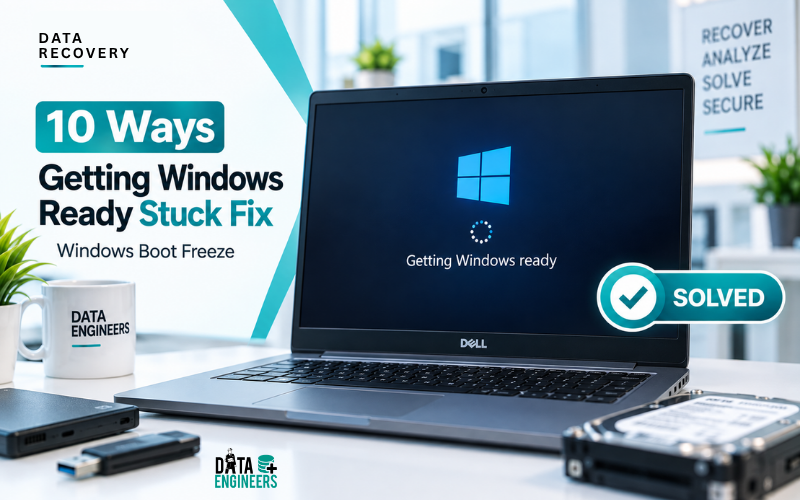
Getting Windows Ready Stuck? 10 Safe Ways to Fix It Without Losing Your Data
Seeing “Getting Windows ready, Don’t turn off your computer” can be worrying, especially when the message stays on the screen for a long time.
In many cases, Windows is processing an update, configuration change, installation task or other system operation in the background.
The important point is that a system appearing stuck does not automatically mean your files are gone.
However, if the computer remains unchanged for an unusually long period, repeatedly freezes, restarts or shows other storage-related symptoms, the problem may be more serious.
Possible causes include:
- Windows update problems
- Corrupted system files
- Interrupted installation
- Damaged installation media
- File-system errors
- Storage drive problems
- Bad sectors
- Driver conflicts
- Hardware instability
- Power interruption
Microsoft provides several recovery options for Windows 10 and Windows 11, including Startup Repair, System Restore, uninstalling updates and recovery media, depending on the reason Windows cannot start correctly.
“Getting Windows Ready” vs “Getting Files Ready for Installation”
These two messages are often confused, but they can appear during different situations.
“Getting Windows ready”
This message commonly appears while Windows is completing an update, configuration process or system operation.
“Getting files ready for installation”
This message normally appears during Windows Setup when the installer is preparing and installing Windows files.
The second situation can be particularly important when you are performing a clean installation because the target drive may be formatted or repartitioned during the process.
If that drive contains important documents, photographs, business files or other information, do not rush into formatting or deleting partitions simply to make the installation continue.
Why Is Windows Stuck on “Getting Windows Ready”?
There is no single cause.
A computer can become stuck because of a temporary Windows problem, but the same symptom can also occur when the underlying storage or hardware is struggling.
Common Software Causes
- Interrupted Windows update
- Corrupted system files
- Incomplete installation
- Driver conflict
- Windows component failure
- Damaged boot configuration
- Failed update
- Corrupted installation files
Possible Hardware Causes
- Failing HDD
- Failing SSD
- Bad sectors
- Unstable RAM
- Storage controller problems
- Faulty SATA/NVMe connection
- Power problems
- Overheating
When an installation repeatedly stops at a similar point, it is worth considering both the installation media and the target storage rather than assuming Windows itself is the only problem.
Microsoft community discussions around “Getting files ready for installation” also show cases where the issue can be associated with installation media, slow or problematic storage or other hardware conditions.
First Things to Do Before Fixing the Problem
Before trying commands, resets or a Windows reinstall, think about your data.
Ask yourself:
Is there important data on this computer that has not been backed up?
If the answer is yes, data preservation should come before aggressive troubleshooting.
This is particularly important if you notice:
- Clicking or grinding sounds from an HDD
- The SSD disappearing from BIOS
- Extremely slow disk access
- Repeated freezing
- “No bootable device” messages
- Windows asking you to format a drive
- The storage capacity appearing incorrectly
- Files becoming inaccessible
If the drive itself may be failing, repeated repair attempts can make the situation worse.
For more information, see our guide on hard drive not detected and safe recovery.
Fix 1: Wait and Check for Activity
The first step is sometimes the simplest.
Windows installation or update processes can take longer on:
- Older HDDs
- Large updates
- Slow USB media
- Older computers
- Systems with limited resources
A Microsoft community response recommends allowing the installation time to progress before assuming that it has completely frozen, particularly when the storage is slow.
However, there is a difference between slow and completely unresponsive.
If there is visible activity and the percentage occasionally changes, waiting may be appropriate.
If there has been no meaningful change for a prolonged period and the computer appears completely frozen, continue with the next steps.
Fix 2: Disconnect Unnecessary Devices
Before restarting the installation, disconnect external devices that are not required.
Remove:
- External HDDs
- External SSDs
- USB flash drives
- Printers
- Card readers
- Docking stations
- Unnecessary USB accessories
Keep only the essential keyboard, mouse, display, installation media and target storage.
External devices can occasionally interfere with boot or installation processes.
Microsoft community troubleshooting guidance for this particular installation problem also recommends disconnecting unnecessary peripherals.
Important
If an external drive contains important data, do not disconnect it while it is actively writing data.
Safely stop the device where possible before removing it.
Fix 3: Perform a Safe Power Restart
If Windows is genuinely frozen and there is no meaningful disk activity, a restart may be necessary.
For a completely unresponsive system:
- Hold the power button until the computer shuts down.
- Wait several seconds.
- Disconnect unnecessary external devices.
- Start the computer again.
- Allow Windows to attempt recovery.
This is different from repeatedly switching the computer off during every stage of installation.
A forced shutdown should be used when the system is actually unresponsive—not as the first response to a normal installation that is simply taking time.
Fix 4: Enter the Windows Recovery Environment
If Windows cannot start normally, Windows Recovery Environment (WinRE) provides several built-in troubleshooting tools.
Microsoft states that WinRE can be accessed through advanced startup, a recovery drive or Windows installation media.
Available options can include:
- Startup Repair
- System Restore
- Uninstall Updates
- Startup Settings
- Command Prompt
- System Image Recovery
- Reset this PC
If your computer is encrypted with BitLocker, some recovery operations may require the BitLocker recovery key.
Fix 5: Run Startup Repair
If Windows is unable to boot correctly, Startup Repair is one of the first built-in recovery options to consider.
Microsoft explains that Startup Repair can automatically diagnose and attempt to fix certain problems involving:
- Damaged system files
- Boot configuration problems
- Master boot record issues
- Incompatible drivers
- Certain registry problems
You can access it through:
Troubleshoot → Advanced options → Startup Repair
Startup Repair is designed for boot problems. It is not a substitute for recovering data from a physically failing hard drive or SSD.
If the storage itself is failing, the priority should be preserving the data.
Fix 6: Try System Restore or Uninstall Updates
If the problem began immediately after a Windows update or system change, another recovery option may be appropriate.
System Restore
System Restore can return certain system files and settings to an earlier restore point without normally removing personal files.
Uninstall Updates
If a recent Windows update caused the startup problem, WinRE may provide an option to uninstall the relevant update.
Microsoft lists System Restore and update removal among Windows recovery options for systems that are not starting correctly.
These options are generally preferable to immediately performing a clean installation when the objective is to get Windows working again while preserving personal data.
Fix 7: Check the Windows Installation USB
If you are stuck specifically at:
“Getting files ready for installation”
the installation media itself should be considered.
A damaged or improperly created USB installer can cause setup problems.
Microsoft provides an official Media Creation Tool for creating Windows installation media. The current Microsoft guidance also recommends backing up files before installing or reinstalling Windows.
If you recreate the installation media:
- Use another working computer if necessary.
- Download the official Windows installation files.
- Use a reliable USB flash drive.
- Recreate the bootable installation media.
- Restart the affected computer.
- Try the installation again.
Do not assume that the target hard drive is bad just because Setup stopped.
The USB installer, target storage, RAM, BIOS/UEFI configuration or other hardware can all be involved.
Fix 8: Check the Hard Drive or SSD
This is one of the most important steps when Windows repeatedly freezes during installation.
If the installation consistently stops at different percentages or repeatedly freezes while accessing the target disk, investigate the storage.
Possible symptoms of a storage problem include:
- Very slow installation
- Random installation freezes
- Files taking unusually long to open
- Disk disappearing from BIOS
- “No bootable device” errors
- File-system corruption
- Bad-sector warnings
- Repeated Windows crashes
A hard drive can sometimes continue working enough to start Windows while becoming unreliable during heavy read/write operations.
Similarly, an SSD can suddenly become inaccessible or develop controller, firmware or other hardware-related problems.
For more guidance, see our boot failure data recovery guide for laptops and desktops.
Fix 9: Protect Your Data Before Resetting Windows
This is the step many users skip.
If Windows is stuck but your personal files are important, do not immediately choose Reset this PC, delete partitions or perform a clean installation.
Microsoft notes that reinstalling Windows using installation media can remove everything from the device.
Before proceeding, consider whether you need to preserve:
- Documents
- Desktop files
- Downloads
- Photos
- Videos
- Business files
- Accounting data
- Databases
- Project folders
- Email data
- Browser profiles
If Windows still starts occasionally, back up the important information first.
If Windows cannot boot but the drive is healthy, data may sometimes be copied by connecting the drive to another working system.
If the drive is showing physical failure symptoms, avoid repeatedly trying to boot from it.
Fix 10: Reinstall Windows Only as a Last Resort
A clean Windows installation can solve serious operating-system problems, but it should not automatically be the first choice.
Before reinstalling, determine:
Is the problem only Windows?
If the storage is healthy and your files are backed up, reinstalling may be reasonable.
Is the storage failing?
If the drive itself is failing, reinstalling Windows can increase the risk of losing recoverable information.
Is there important data without a backup?
Stop and prioritize data recovery.
Microsoft provides Windows installation media for reinstalling Windows, but its current guidance explicitly says to back up files before installing or reinstalling.
What If Windows Still Will Not Start?
If Startup Repair, System Restore, update removal and other appropriate recovery options do not solve the problem, the next step should be diagnosis.
Don’t automatically assume that reinstalling Windows is the answer.
The underlying problem could be:
Windows corruption → storage corruption → failing HDD/SSD → hardware problem
A proper diagnosis helps determine whether you need:
- Windows repair
- Backup restoration
- Storage replacement
- Data recovery
- Professional hardware diagnosis
If your computer displays “No Bootable Device Found,” our Dell no bootable device recovery guide may also be useful for Dell systems.
When the Problem May Actually Be a Storage Failure
One of the biggest mistakes is treating every Windows installation freeze as a software problem.
Imagine this situation:
- A customer tries to reinstall Windows.
- Setup reaches “Getting files ready for installation.”
- It freezes.
- They restart and try again.
- It freezes at another percentage.
- They format the drive.
- They try again.
- The SSD disappears.
At this point, the problem may not have been Windows at all.
The storage device may have been unstable from the beginning.
A failing storage device can create symptoms that look like:
- Windows installation stuck
- Windows update stuck
- Boot loop
- Startup repair loop
- Random freezing
- Corrupted files
- Missing partitions
- Installation errors
That is why repeated installation failures should be treated as a possible storage-health warning, especially when other symptoms are present.
Common Mistakes That Can Cause Data Loss
Mistake 1: Formatting Immediately
If Windows Setup says the drive needs formatting and important data is still on it, stop.
Mistake 2: Deleting Every Partition
Deleting partitions can remove the structure needed to locate existing files.
Mistake 3: Reinstalling Windows Over Important Data
A new installation writes new information to the storage and may overwrite recoverable data.
Mistake 4: Repeated Forced Shutdowns
Repeatedly interrupting a failing storage device can make an unstable situation worse.
Mistake 5: Running Repair Commands Without a Backup
Some repair operations modify the file system.
Mistake 6: Installing Recovery Software on the Same Drive
If you are trying to recover deleted files, installing software onto that same drive can overwrite recoverable information.
Mistake 7: Ignoring Clicking or Grinding
An HDD making unusual mechanical noises may have physical damage.
Turn it off and avoid repeated attempts.
For physically damaged drives, our guide on recovering data from a physically damaged hard drive explains why continued use can be risky.
Professional Data Recovery for Windows Computers
If your Windows computer is stuck during installation and the storage device appears healthy, normal Windows troubleshooting may solve the problem.
But if the problem is connected to a failing HDD, SSD, corrupted partition, inaccessible drive or damaged file system, professional recovery may be more appropriate.
Data Engineers provides professional recovery for:
- Laptop hard drives
- Desktop hard drives
- SSDs
- NVMe drives
- External drives
- Corrupted partitions
- Deleted files
- Formatted drives
- Boot-failure situations
- Physically damaged storage
You can explore our laptop hard drive data recovery guide for additional information about recovering data from laptop storage.
For SSD-specific failures, see our SSD data recovery service.
If the problem involves corrupted files rather than complete drive failure, our corrupted files data recovery service may also be relevant.
Data Engineers provides professional data recovery support in India, including Delhi and New Delhi, with services for both logical and physical storage failures.
How to Prevent Future Windows Installation Problems
A few simple habits can prevent a frustrating situation later.
Keep Regular Backups
Important files should never exist in only one location.
Keep copies of critical information on separate storage or a trusted backup system.
Monitor Drive Health
Pay attention to:
- Slow performance
- Frequent crashes
- SMART warnings
- Bad-sector alerts
- Unusual noises
- Missing drives
Create Recovery Media in Advance
Microsoft’s Windows Recovery Environment and installation media can be valuable when a system becomes unbootable.
Keep Installation Media Healthy
If a USB installer becomes unreliable, recreate it rather than repeatedly using questionable media.
Don’t Wait Until Failure
If a drive is showing warning signs, back up important files before the system completely stops working.
Quick “Getting Windows Ready” Troubleshooting Checklist
If Windows is stuck
- Wait and check for activity
- Disconnect unnecessary devices
- Restart only if genuinely frozen
- Enter Windows Recovery Environment
- Try Startup Repair
- Try System Restore
- Consider uninstalling a recent update
If installation is stuck
- Check the installation USB
- Recreate installation media if necessary
- Check target HDD/SSD health
- Check BIOS/UEFI storage detection
- Avoid unnecessary formatting
If important data is present
- Stop before deleting partitions
- Do not perform a clean install immediately
- Do not overwrite the affected drive
- Back up accessible files
- Consider professional recovery if the drive is failing
Final Takeaway
When Getting Windows Ready is stuck, the problem is not always a broken Windows installation.
Sometimes the system simply needs more time. In other cases, the cause may be corrupted installation media, Windows system problems, a failed update, incompatible hardware or an unhealthy HDD or SSD.
The most important distinction is whether your data is already backed up.
If you have a complete backup, troubleshooting and reinstalling Windows is much simpler.
If important files exist only on the affected computer, don’t immediately format the drive, delete partitions or start a clean installation.
First protect the data.
For Windows computers in India, Delhi and New Delhi, Data Engineers provides professional data recovery for laptops, desktops, HDDs, SSDs, corrupted drives, deleted files, formatted storage and boot-failure situations.
Windows can be reinstalled. Important data may not be replaceable.
Need Help Recovering Data Before a Windows Reinstall?
Contact Data Engineers for professional data recovery assistance
You can also explore Data Engineers’ complete data recovery services for HDD, SSD, laptop, server, RAID, NAS/SAN, corrupted-file and other data-loss situations.
Frequently Asked Questions (FAQs)
Why is “Getting Windows Ready” stuck?
It can happen because Windows is processing an update or system operation, but prolonged freezing can also be associated with corrupted system files, installation problems, storage errors, hardware conflicts or a failing drive.
How long should I wait when Windows says “Getting Windows ready”?
There is no universal time limit because the duration depends on the system and operation being performed. If there is still visible activity, waiting may be appropriate. If the system is completely unresponsive for an extended period, recovery troubleshooting may be necessary.
How do I fix “Getting files ready for installation” stuck?
Start by waiting if the process is still active, disconnect unnecessary peripherals, restart if the system is genuinely frozen, recreate the Windows installation media and check the target storage. If important data is present, avoid formatting or deleting partitions before securing the data.
Can a bad hard drive cause Windows installation to get stuck?
Yes. A failing HDD or SSD can cause installation freezes, read/write errors, slow performance or repeated setup failures.
Will restarting Windows cause data loss?
A restart does not automatically mean your personal files are lost. However, repeatedly interrupting an installation or an unstable storage device can create additional problems.
Can files be recovered if Windows will not boot?
Yes, in many situations the operating system failing to boot does not mean the personal data is gone. If the storage device is still accessible, files may sometimes be copied or recovered independently of Windows.

Worldwide Leader in Data Recovery

Professional Expertise with Long Term Experience
DATA ENGINEERS
011-26426316 | +91-9910132719 | +91-9818567981
support@dataengineers.in
Call us for a free advice.
Specialists at retrieving data from all types of hard drive and phone storage media, today Data Engineers has grown into the India’s largest and most technically capable data recovery company.


Leave a Comment