
- 21 September, 2026
- Data Engineers
- 0 Comments
- 273 Views
- Blog
File or Directory Is Corrupted and Unreadable — How to Recover Your Data
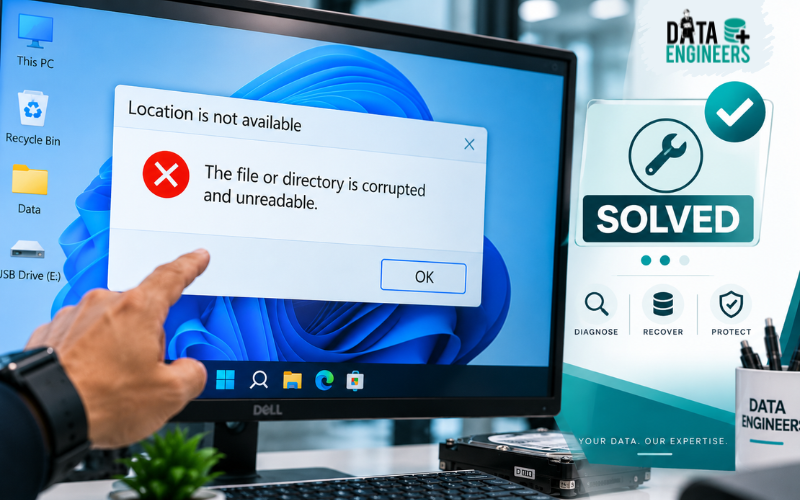
When Windows suddenly says “The file or directory is corrupted and unreadable,” it can be difficult to know what went wrong.
You may have been able to open the folder normally yesterday. Now Windows refuses to access it. An external hard drive may appear in File Explorer, but clicking it produces an error. A USB drive may show the same message. Or a single folder may suddenly become inaccessible.
The good news is that this error does not automatically mean your files are gone.
The message usually means Windows cannot correctly read the file, directory structure, file system or storage device. The underlying cause could be file-system corruption, bad sectors, an unsafe removal, a damaged connection, interrupted writes or a failing hard drive.
The important part is what you do next.
If the files are important, do not immediately format the drive or start running repair commands repeatedly. First determine whether the problem is logical or physical and protect whatever data is still accessible.
What Does “File or Directory Is Corrupted and Unreadable” Mean?
The Windows message:
“The file or directory is corrupted and unreadable.”
means Windows cannot reliably interpret the information it needs to access that file, folder, partition or storage device.
The problem can affect:
- A single file
- A single folder
- An entire partition
- An external hard drive
- An internal HDD
- An SSD
- A USB flash drive
- A memory card
- A RAW drive
- A Windows system volume
Sometimes the actual file data is still present, but the file-system information that tells Windows where and how to find it has become damaged.
For example, NTFS uses structures such as the Master File Table and directory indexes to organize files. Damage to those structures can prevent Windows from presenting files normally even when portions of the underlying data remain on the storage device.
That is why “corrupted and unreadable” does not necessarily mean “permanently deleted.”
Why Does Windows Say a File or Directory Is Corrupted?
There is no single cause.
The same error message can result from a relatively simple connection problem or a much more serious storage failure.
The most common causes include:
- File-system corruption
- Bad sectors
- Sudden power loss
- Unsafe removal of external storage
- Interrupted file transfers
- Damaged USB or SATA cables
- Failing hard drives
- Partition corruption
- RAW file systems
- Firmware or hardware problems
- Previous improper shutdowns
Recent recovery guidance also emphasizes that the error can occur when Windows cannot reliably read the file system, directory entries, partition information or storage device.
Common Causes of “File or Directory Is Corrupted and Unreadable”
1. File-System Corruption
This is one of the most common reasons for the error.
The file system is responsible for organizing information on a storage device. If its structures become damaged, Windows may know that the drive exists but cannot correctly locate or interpret files.
File-system corruption can occur after:
- Sudden power failure
- Computer crashes
- Unsafe drive removal
- Interrupted formatting
- Interrupted file transfers
- Operating-system problems
In some cases, the storage hardware is still healthy and only the logical structures are damaged.
2. Bad Sectors
A bad sector is an area of a storage device that cannot reliably be read or written.
If important file-system information is stored in a damaged area, Windows may no longer be able to access a folder or partition correctly.
Warning signs include:
- Increasing read errors
- Extremely slow file access
- Files that suddenly stop opening
- Copy operations that repeatedly fail
- Windows freezing while accessing the drive
- Multiple folders becoming inaccessible
If you suspect physical HDD damage, avoid repeatedly scanning the drive.
3. Failing Hard Drive
A failing HDD can produce file-system errors before it completely disappears.
You may notice:
- Clicking sounds
- Grinding noises
- Repeated spin-up and spin-down
- Very slow performance
- Frequent disconnections
- Missing files
- Incorrect drive capacity
- Increasing numbers of unreadable folders
If these symptoms appear together with “file or directory is corrupted and unreadable,” the issue should be treated as a potential hardware failure rather than simply a Windows software problem.
4. Damaged USB or SATA Connection
Sometimes the storage device is fine, but the communication path is not.
A damaged USB cable, unstable USB port, loose SATA cable or insufficient power can interrupt access to an external or internal drive.
Before assuming the disk is damaged, try:
- A different USB port
- Another USB cable
- Another computer
- Direct connection instead of a USB hub
- A stable power source
If the error disappears, the connection may have been the problem.
5. Unsafe Removal
Removing an external hard drive or USB storage while Windows is still writing data can interrupt file-system operations.
This can leave directory or file-system structures inconsistent.
That is one reason safe removal matters, particularly when transferring large amounts of data.
6. RAW File System
Another common situation is when a drive that previously showed NTFS or another recognized file system suddenly appears as RAW.
You may see messages such as:
“You need to format the disk in drive before you can use it.”
or:
“The file or directory is corrupted and unreadable.”
If important data exists on the RAW drive, do not format it simply to make Windows recognize it again.
Formatting may change file-system structures that could be useful during recovery.
Is “File or Directory Is Corrupted and Unreadable” a Sign of Hard Drive Failure?
Not necessarily.
The error can be caused by logical corruption, but it can also be an early symptom of physical storage problems.
The difference usually becomes clearer when you look at the drive’s behavior.
More likely to be a logical problem:
- Only one folder is affected
- The drive works normally otherwise
- No unusual sounds
- Normal read speed
- The problem appeared after an unsafe removal or crash
More concerning for physical failure:
- Multiple folders are affected
- The drive becomes extremely slow
- Files repeatedly fail to copy
- The drive disconnects
- Bad sectors are reported
- Windows freezes during access
- HDD makes clicking or grinding sounds
- The drive disappears intermittently
When several physical warning signs appear together, data recovery should take priority over repair.
Common Error Messages You May See
The same underlying storage problem can produce different Windows messages.
You may encounter:
“The file or directory is corrupted and unreadable”
This is the primary error covered in this guide.
“Location is not available”
Windows cannot access the requested location.
“Drive is not accessible”
The storage device or partition may be present but Windows cannot read it correctly.
“You need to format the disk before you can use it”
This often appears when Windows cannot recognize the expected file system.
If the drive contains important files, do not automatically accept the formatting prompt.
Error 0x80070570
The 0x80070570 error can also be associated with corrupted or unreadable files and storage problems. Current recovery guides connect it with issues involving inaccessible data, corrupted file systems, RAW volumes and storage devices.
How to Fix “File or Directory Is Corrupted and Unreadable”
There is no universal file or directory corrupted and unreadable fix.
The safest solution depends on whether you are dealing with a connection problem, logical corruption or physical drive failure.
Step 1: Stop Writing to the Drive
If the files are important, start here.
Avoid:
- Downloading new files to the drive
- Installing software on the drive
- Formatting it
- Initializing it
- Repeatedly moving files
- Running multiple repair utilities
Your first objective should be to preserve the existing data.
Step 2: Check the Connection
If it is an external hard drive or USB device:
- Disconnect it safely.
- Try another USB port.
- Replace the USB cable.
- Avoid USB hubs.
- Try another computer.
If the drive works normally after changing the connection, the original problem may not have been file corruption at all.
Step 3: Copy Accessible Files
If you can still open some folders, copy the most important files to another healthy storage device.
Prioritize:
- Business documents
- Photos and videos
- Databases
- Project files
- Financial records
- Personal documents
- Other irreplaceable data
Do not move the only remaining copy onto the damaged drive.
Step 4: Check Whether the Drive Appears as RAW
Open Windows Disk Management and check how the partition is identified.
If it appears as RAW, do not immediately format it.
A RAW status can indicate that Windows cannot recognize the expected file-system structure. Data recovery may still be possible depending on the condition of the storage device.
Should You Run CHKDSK?
This is where many online guides become too simplistic.
You will often see:
“Run CHKDSK /F.”
CHKDSK can be useful for repairing certain logical file-system problems. Microsoft community guidance also commonly recommends CHKDSK for corrupted volumes.
But repairing a drive and recovering data from a failing drive are not the same thing.
If you already have a verified backup and the storage device appears healthy, CHKDSK may be a reasonable troubleshooting step.
If the drive contains the only copy of important files, be more cautious.
Recent recovery-focused guidance specifically recommends considering data preservation before allowing CHKDSK to rewrite damaged file-system structures.
Be especially careful with CHKDSK when:
- The HDD is clicking
- The drive is extremely slow
- Multiple files are unreadable
- The drive frequently disconnects
- The drive has bad sectors
- The partition is RAW
- The drive is not detected consistently
- The data has no backup
If the storage device is physically failing, repeated repair attempts may place additional stress on it.
How to Recover Data From a Corrupted and Unreadable Drive
The most important question is often not:
“How do I remove the error?”
It is:
“How do I recover my files without making the situation worse?”
If the data is important, that should be your priority.
1. Determine Whether the Drive Is Physically Healthy
A professional assessment looks at the drive’s behavior and condition before deciding what recovery method is appropriate.
2. Create a Controlled Image When Appropriate
If the drive is readable enough, recovery specialists may create a sector-level image or clone.
This allows recovery work to be performed from the best available copy rather than repeatedly accessing the original device.
3. Deal With Unreadable Areas
If certain sectors cannot be read, specialized techniques may be needed to retrieve as much readable information as possible.
4. Reconstruct File-System Information
If NTFS, FAT, exFAT or another file system has become corrupted, recovery may require analysis and reconstruction of its structures.
5. Extract the Files
Once the file structure is sufficiently understood, recoverable files can be extracted to separate healthy storage.
6. Verify the Recovered Data
A successful recovery is not simply seeing file names again.
Important files should be opened and checked to confirm that their actual contents are usable.
When Professional Data Recovery Is the Safer Option
Consider professional data recovery when the error persists and the files are important.
Professional recovery is especially appropriate if:
- The drive makes clicking or grinding sounds
- The drive is not detected correctly
- The drive becomes extremely slow
- Multiple directories are corrupted
- The partition has become RAW
- Files disappear unexpectedly
- Copying files repeatedly fails
- The drive disconnects during access
- Windows asks you to format the drive
- The drive has suffered physical damage
- Important business data exists only on the device
Data Engineers provides hard disk data recovery for failed, corrupted, inaccessible and physically damaged HDDs.
For SSD problems, the appropriate service may instead be SSD data recovery.
If the affected storage is part of a business infrastructure, Data Engineers also provides server data recovery and NAS/SAN data recovery.
For RAID-related corruption, see the RAID array failure recovery guide before attempting to rebuild the array.
What You Should NOT Do
If Windows says “the file or directory is corrupted and unreadable,” avoid these common mistakes.
Do Not Format the Drive
Formatting may make the drive usable again, but it can also make recovery more complicated.
Do Not Initialize the Drive
If an existing drive suddenly appears uninitialized, stop before clicking Initialize if the data matters.
Do Not Save New Data
New writes can overwrite information that may still be recoverable.
Do Not Repeatedly Run CHKDSK
Especially avoid repeated repair attempts on a physically unstable drive.
Do Not Install Recovery Software on the Same Drive
The recovery software and recovered files should use separate healthy storage.
Do Not Ignore Clicking Sounds
Mechanical symptoms should be treated differently from simple file-system corruption.
Do Not Assume a “Healthy” Disk Status Means Your Files Are Safe
Windows may report the physical disk as online or healthy while the volume or file-system structures are damaged. Microsoft community discussions show situations where a drive can appear healthy at the disk level while the volume still reports corruption or requires repair.
How to Prevent File-System Corruption
You cannot prevent every storage failure, but you can reduce the risk.
Keep Multiple Backups
Important files should have more than one copy.
For critical business data, use a proper backup strategy rather than relying on a single external hard drive.
Safely Remove External Drives
Avoid unplugging storage while Windows is actively writing data.
Use Reliable Power
Unexpected power interruptions can damage file-system operations.
Monitor Aging Drives
A drive that suddenly becomes slow, unstable or noisy should not be treated as normal.
Act on Repeated Errors
One isolated corrupted file is different from an entire drive repeatedly producing unreadable directories.
Repeated errors deserve investigation.
Conclusion
The “file or directory is corrupted and unreadable” error can look like a simple Windows problem, but the underlying cause can range from a damaged file system to serious hard-drive failure.
That is why the first step should not always be “run CHKDSK.”
Instead:
- Stop unnecessary writes.
- Check the connection.
- Copy accessible files.
- Do not format an important drive.
- Be cautious with CHKDSK.
- Check for signs of physical failure.
- Recover important data before aggressive repairs when necessary.
If Windows is showing “The file or directory is corrupted and unreadable” and the affected drive contains important files, professional data recovery can help determine whether the problem is logical, physical or related to the file system.
Data Engineers provides professional data recovery in India, including support for HDDs, SSDs, servers, RAID, NAS and SAN storage.
If your files are important, don’t format the drive just to make the error disappear. Recover the data first.
Frequently Asked Questions (FAQs)
What does “file or directory is corrupted and unreadable” mean?
It means Windows cannot correctly read the file, directory, file-system structure, partition or storage device involved. The underlying cause can be logical corruption, bad sectors, connection problems or hardware failure.
How do I fix “file or directory is corrupted and unreadable”?
First check the connection and try another computer if appropriate. If the drive contains important data, protect accessible files before formatting or using repair utilities. CHKDSK may help with certain logical problems, but it should be used carefully when physical drive failure is suspected.
Is “file or directory is corrupted and unreadable” a hard drive problem?
It can be. The error may result from file-system corruption, but repeated errors combined with slow performance, bad sectors, disconnections or unusual sounds can indicate a failing hard drive.
Can I recover files from a corrupted and unreadable hard drive?
Yes, recovery may be possible. The outcome depends on the condition of the drive, the extent of corruption and whether the underlying data can still be read.
Can CHKDSK fix a corrupted directory?
CHKDSK can repair certain file-system inconsistencies, but it is not the same as a data recovery process. If important files exist only on the affected drive, consider preserving the data before making repairs.
What does error 0x80070570 mean?
Error 0x80070570 can occur when Windows cannot properly read or access corrupted data or storage structures. It is commonly associated with corrupted or unreadable files and storage devices.

Worldwide Leader in Data Recovery

Professional Expertise with Long Term Experience
DATA ENGINEERS
011-26426316 | +91-9910132719 | +91-9818567981
support@dataengineers.in
Call us for a free advice.
Specialists at retrieving data from all types of hard drive and phone storage media, today Data Engineers has grown into the India’s largest and most technically capable data recovery company.



Leave a Comment