
- 22 September, 2026
- Data Engineers
- 0 Comments
- 308 Views
- Blog
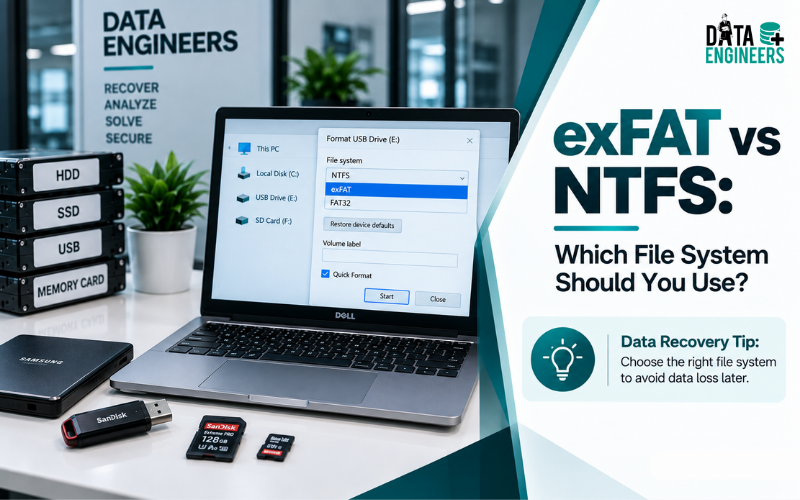
exFAT vs NTFS: Which File System Should You Use and Why?
Choosing the right file system can make a big difference when you format a hard drive, SSD, USB drive, memory card or other storage device.
Two of the most common options are exFAT and NTFS.
But which one should you choose?
The answer depends on how you plan to use the drive.
NTFS is generally the better choice for Windows system and internal drives, while exFAT is often better for portable storage that needs to work across Windows, Mac and other compatible devices.
The difference is not only about compatibility. exFAT vs NTFS also involves performance, security, journaling, file management, portability and data recovery.
In this guide, we will compare exFAT and NTFS in simple terms so you can choose the right file system for your storage device.
What Is NTFS?
NTFS or New Technology File System, is the main file system used by Windows.
It is designed for reliability, security and managing files on Windows computers and storage devices.
NTFS supports advanced features such as:
- File permissions
- Access control
- Journaling
- Compression
- Encryption-related features
- Advanced file and metadata structures
- Large files and volumes
Because of these features, NTFS is commonly used for Windows operating-system drives and internal HDDs and SSDs.
If you are using a drive mainly with Windows, NTFS is usually the more suitable choice.
What Is exFAT?
exFAT or Extended File Allocation Table, was designed to provide a simpler file system with support for very large files and storage devices.
It is especially useful for removable storage.
You may find exFAT on:
- USB flash drives
- External hard drives
- External SSDs
- SD cards
- Portable storage devices
- Devices that need cross-platform file sharing
One of the biggest advantages of exFAT is compatibility.
It is designed for use across a wide range of operating systems and devices, making it convenient when you regularly move large files between computers.
Microsoft’s exFAT specification describes it as a successor to FAT32 designed to support very large files and storage devices.
exFAT vs NTFS: Key Differences
Feature | NTFS | exFAT |
Windows support | Excellent | Excellent |
macOS compatibility | More limited for native write access | Broad read/write support |
Large files | Yes | Yes |
Journaling | Yes | No |
File permissions | Yes | No |
Best for Windows system drive | Yes | No |
Best for portable storage | Good | Excellent |
Cross-platform sharing | Limited compared with exFAT | Better |
Security features | More advanced | Simpler |
Removable storage | Suitable | Often preferred |
Microsoft’s file-system comparison shows that NTFS supports metadata journaling, file change logging, access control lists, encryption, compression and other advanced features that exFAT does not provide.
exFAT vs NTFS for External Hard Drives
If you are formatting an external hard drive, your choice mainly depends on where you will use it.
Choose NTFS if:
- You mainly use Windows computers.
- The drive stays connected to a Windows PC.
- You need Windows permissions.
- You want journaling.
- The drive is used for Windows-based workloads.
Choose exFAT if:
- You use both Windows and Mac.
- You move the drive between different computers.
- You store large videos or other large files.
- Portability is more important than advanced Windows features.
- You want a simple file system for removable storage.
For cross-platform external storage, exFAT is generally the more convenient option. Seagate’s current file-system guidance also identifies NTFS as native to Windows and exFAT as a format that can be used between Mac and Windows.
exFAT vs NTFS for SSD
Both file systems can be used with SSDs, but the best choice depends on the purpose of the SSD.
Internal Windows SSD
For an internal SSD running Windows, NTFS is normally the better choice because Windows is designed around it and its advanced file-system features.
External SSD
If you use an external SSD with both Windows and Mac computers, exFAT can be the better option because portability and compatibility become more important.
Do not choose a file system based only on theoretical speed.
Actual storage performance also depends on:
- SSD or HDD hardware
- USB interface
- Computer hardware
- File sizes
- Workload
- Operating system
- Drive condition
So, when comparing exFAT vs NTFS speed, there is no single winner for every situation.
exFAT vs NTFS for USB Drives
For a USB flash drive, exFAT is often a practical choice when you need to transfer large files between different systems.
For example, if you regularly move:
- 4K videos
- Large photo libraries
- Backup files
- Disk images
- Large project files
exFAT can be convenient because it supports files much larger than the 4 GB limit associated with FAT32. Microsoft also highlights exFAT’s support for very large files and removable-media use.
If the USB drive will be used only with Windows and you need NTFS-specific features, NTFS may make more sense.
Which Is Better for Data Recovery: exFAT or NTFS?
This is an important question that many basic exFAT vs NTFS comparisons do not explain well.
Both file systems can experience:
- Deleted files
- Corruption
- Formatting
- Partition damage
- File-system errors
- RAW drive problems
- Missing files
The file system can affect how recovery is performed because NTFS and exFAT organize and record information differently.
NTFS has journaling and richer metadata structures, while exFAT has a simpler design and does not provide the same journaling features.
However, you should not assume that NTFS is always easier to recover or that exFAT is impossible to recover.
Recovery depends on what happened to the drive.
For example:
- Recently deleted files may still be recoverable.
- Formatting can make recovery more complicated.
- Severe corruption can damage file-system structures.
- Overwriting can permanently remove recoverable data.
- Physical drive failure requires a different recovery approach.
Microsoft’s own Windows recovery guidance treats NTFS and exFAT differently during recovery scenarios, including using more extensive recovery for exFAT volumes and for several NTFS problem cases.
If an important drive becomes inaccessible, avoid repeatedly formatting, repairing or writing new data to it.
For serious cases, professional hard disk data recovery can help determine the safest recovery approach.
Is NTFS More Secure Than exFAT?
For Windows environments, NTFS provides more advanced security and file-management features.
Microsoft’s comparison lists NTFS support for access control lists, file-system-level encryption, permissions, compression and journaling, while exFAT does not provide these same features.
This makes NTFS more suitable for Windows systems where security and access control matter.
exFAT focuses more on simplicity and portability.
So:
- Security and Windows features → NTFS
- Portability and cross-platform storage → exFAT
exFAT vs NTFS: Which One Should You Choose?
The simplest way to decide is to look at your use case.
Choose NTFS for:
- Windows internal HDD
- Windows internal SSD
- Windows system drives
- Windows-only storage
Drives requiring permissions and journaling
Choose exFAT for:
- USB flash drives
- External SSDs
- External hard drives
- SD cards
- Cross-platform file transfers
- Windows + Mac storage
Quick Answer
If you ask:
“Should I use exFAT or NTFS?”
The answer is:
- Use NTFS when the drive is mainly for Windows.
- Use exFAT when the drive needs to move between different operating systems and devices.
What Happens If You Format the Drive With the Wrong File System?
Formatting a drive can erase access to existing files, depending on the formatting process and what happens afterward.
For example, changing a drive from one file system to another may make previously stored data inaccessible.
If the drive already contains important files, do not format it simply to change from exFAT to NTFS or NTFS to exFAT.
First make sure the data is backed up.
If the drive is already showing messages such as:
- “Drive needs to be formatted”
- “File system is RAW”
- “Access is denied”
- “The parameter is incorrect”
- “Drive is not accessible”
stop and assess the situation before formatting.
Professional corrupted file data recovery may be appropriate when important files are already inaccessible.
Need Data Recovery for an exFAT or NTFS Drive?
Choosing the right file system is important, but it does not protect a drive from accidental formatting, corruption, deleted files, bad sectors or physical failure.
If an exFAT or NTFS hard drive, SSD, external drive or USB storage device has suddenly become inaccessible, avoid formatting it or repeatedly running repair commands before checking the condition of the data.
Data Engineers – Professional Data Recovery Services
Data Engineers provides professional data recovery support for storage devices affected by logical corruption, accidental formatting, deleted files, bad sectors and physical damage.
Our data recovery services cover:
- Hard Disk Data Recovery
- SSD Data Recovery
- External Hard Drive Data Recovery
- USB Drive & Memory Card Recovery
- RAID Data Recovery
- NAS & SAN Data Recovery
- Server Data Recovery
- Corrupted File Recovery
- Formatted Drive Recovery
- Deleted Data Recovery
- Digital Forensics & Evidence Recovery
Whether your drive uses NTFS, exFAT or another supported file system, the recovery approach depends on the actual condition of the storage device and the type of data loss.
When Should You Contact a Data Recovery Professional?
Professional assessment is recommended when:
- The drive is not detected or shows the wrong capacity.
- Windows asks you to format the drive.
- The partition suddenly appears as RAW.
- Important files have disappeared after formatting.
- Files cannot be copied because of read errors.
- The drive is extremely slow or keeps disconnecting.
- An HDD is clicking, grinding or making unusual sounds.
- A RAID, NAS or server storage system has failed.
- The drive contains important business or personal data with no backup.
The first priority should be protecting the original data. Avoid writing new files to the affected drive, formatting it, initializing it or repeatedly running repair utilities when the data is important.
For professional assistance, explore Data Engineers’ data recovery services and get the storage device assessed before taking further recovery or repair steps.
Conclusion
The exFAT vs NTFS decision becomes much easier when you focus on how you will actually use the drive.
- NTFS is the better choice for most Windows system and internal storage needs.
- exFAT is often the better choice for portable storage that needs to work across Windows, Mac and other compatible devices.
The choice also matters when thinking about data recovery.
Neither file system guarantees data safety. Deleted files can be overwritten, file systems can become corrupted and physical storage devices can fail.
The safest approach is to choose the file system that matches your use case, maintain reliable backups and avoid formatting or writing to a drive when important data is already inaccessible.
If an exFAT or NTFS drive has become corrupted, formatted accidentally, inaccessible or is no longer showing important files, professional data recovery services in India can help assess the storage device before further actions are taken.
Choose the file system for how you use the drive—not simply because one sounds faster or newer.
Frequently Asked Questions (FAQs)
1. Is exFAT better than NTFS?
Neither is universally better. NTFS is generally better for Windows internal and system drives, while exFAT is generally better for portable storage and cross-platform file sharing.
2. Which is faster, exFAT or NTFS?
There is no universal speed winner. Performance depends on the device, operating system, connection, file size and workload. NTFS is designed for Windows workloads, while exFAT is designed with simpler, portable storage in mind.
3. Should I use exFAT or NTFS for an external SSD?
Use exFAT if you need the SSD to work easily between Windows and Mac. Use NTFS if it will mainly be used with Windows and you need its advanced file-system features.
4. What are the disadvantages of exFAT?
The main disadvantages are the lack of NTFS-style journaling, permissions and some advanced Windows file-management features. It is designed more for portability than for a feature-rich Windows system volume.
5. Which file system is better for data recovery, exFAT or NTFS?
There is no universal winner. Recovery depends on the type of data loss, file-system condition, overwriting, formatting, fragmentation and physical condition of the storage device. Both exFAT and NTFS drives can require professional data recovery.

Worldwide Leader in Data Recovery

Professional Expertise with Long Term Experience
DATA ENGINEERS
011-26426316 | +91-9910132719 | +91-9818567981
support@dataengineers.in
Call us for a free advice.
Specialists at retrieving data from all types of hard drive and phone storage media, today Data Engineers has grown into the India’s largest and most technically capable data recovery company.

Leave a Comment