

Black Screen Laptop Recovery: How to Recover Data When Display Fails (2026 Guide)
You press the power button, hear the cooling fan start, notice the keyboard lights turn on, but the screen stays completely black. It’s a situation that instantly causes panic, especially when important work, family photos, business documents, or personal files are stored on the laptop.
If you’re searching for “my PC screen is black”, “my computer screen is black” or experiencing other computer screen problems, don’t assume your data is gone. In many cases, a black screen doesn’t mean your storage drive has failed. The issue may be related to the display, graphics hardware, Windows, RAM, BIOS, or another component.
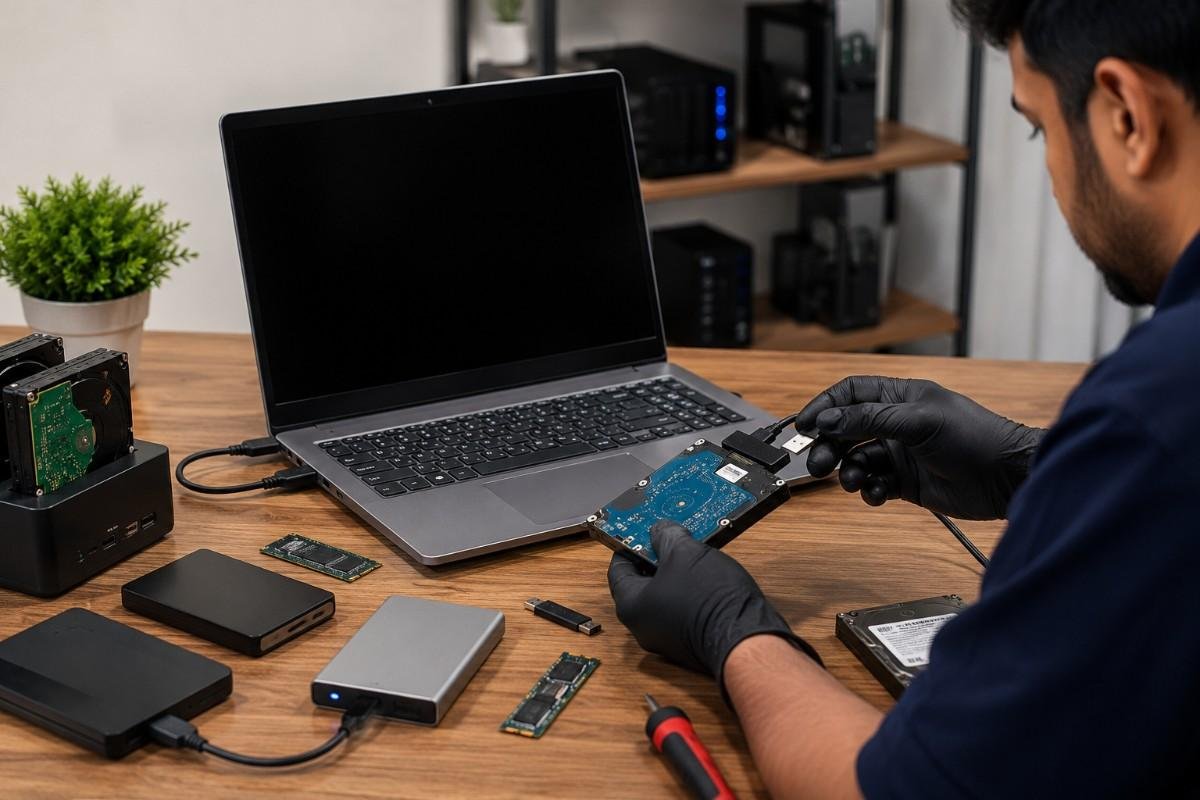
The most important thing is to identify why the screen is black before attempting repairs. Performing random fixes, reinstalling Windows, or replacing hardware without understanding the actual cause can increase the risk of losing valuable data.
In this guide, you’ll learn the most common causes of a laptop black screen, how to troubleshoot the issue safely, and when professional black screen laptop recovery is the best option to protect your important files.
What Does a Black Screen Mean?
A black screen simply means that your laptop is unable to display an image. However, that doesn’t necessarily mean the laptop has stopped working.
Many users immediately think the display is broken, but that’s only one possibility.
A black screen can occur because of:
- Display failure
- Graphics driver problems
- GPU issues
- Faulty RAM
- SSD or hard drive failure
- Windows startup corruption
- BIOS configuration errors
- Motherboard problems
- Loose internal display cable
- Backlight failure
Understanding the actual cause helps prevent unnecessary repairs and protects your important data.
Black Screen vs No Power vs No Boot
These three problems are often confused, but they require completely different solutions.
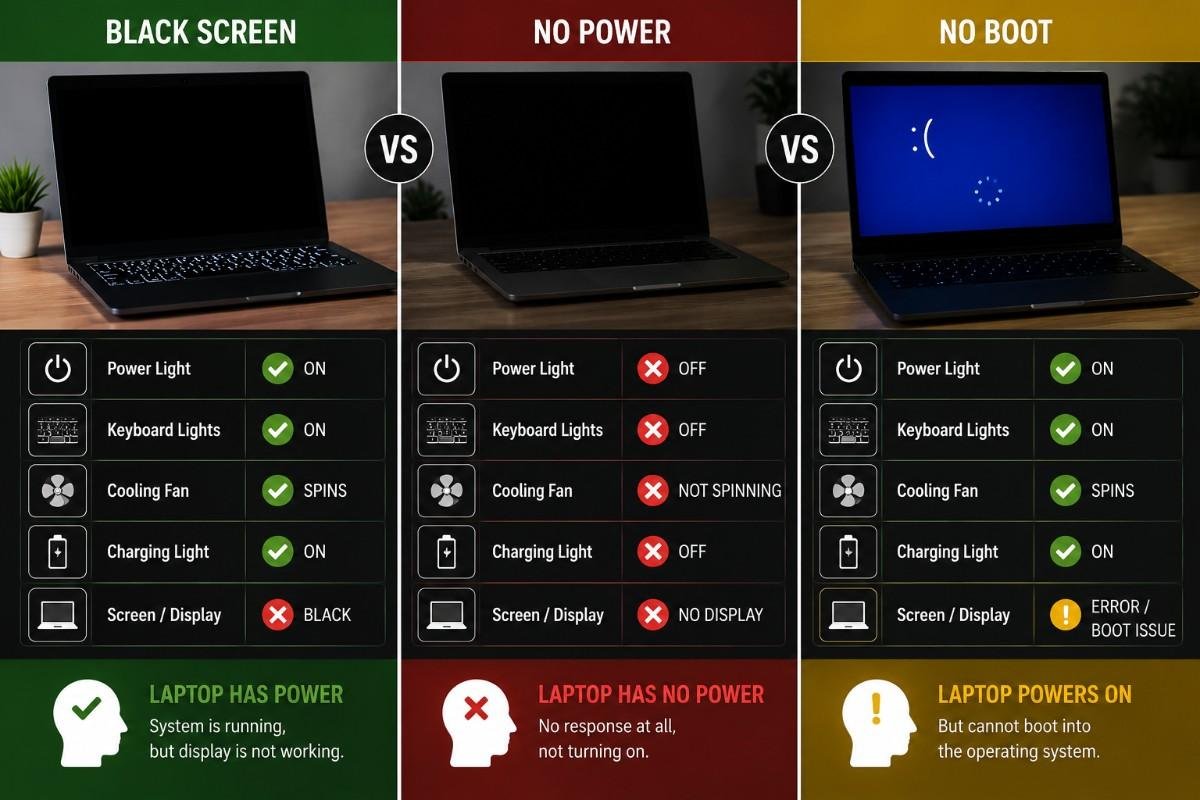
Black Screen
The laptop receives power but doesn’t display anything.
Typical signs include:
- Power light is on
- Keyboard lights work
- Cooling fan spins
- Charging light is visible
- Screen remains black
In many cases, the laptop is still running normally in the background.
No Power
A laptop with no power usually shows:
- No charging light
- No fan movement
- No keyboard lights
- No startup sound
- No display
Common causes include:
- Dead battery
- Faulty charger
- Charging port damage
- Motherboard failure
No Boot
A laptop that won’t boot powers on but cannot load Windows.
Symptoms include:
- Manufacturer logo appears
- Windows loading loop
- Blue Screen of Death
- Automatic Repair
- No Boot Device Found
- Operating System Not Found
Knowing which situation you’re dealing with makes troubleshooting much easier.
How a Laptop Starts and Displays an Image
Every laptop follows a startup sequence before Windows appears.
The process looks like this:
Power Button → Motherboard → RAM Check (POST) → CPU Initialization → BIOS/UEFI → Graphics Processor → Display Output → SSD/HDD Detection → Windows Boot Manager → Windows Desktop
If any of these stages fail, the display may remain black.
For example:
- Faulty RAM can stop POST.
- A damaged GPU may prevent video output.
- BIOS corruption may interrupt startup.
- A failed SSD may stop Windows from loading.
- A broken display cable may prevent the LCD from showing an image even though the laptop is running.
Understanding this sequence helps narrow down the actual problem instead of guessing.
10 Common Causes of a Laptop Black Screen
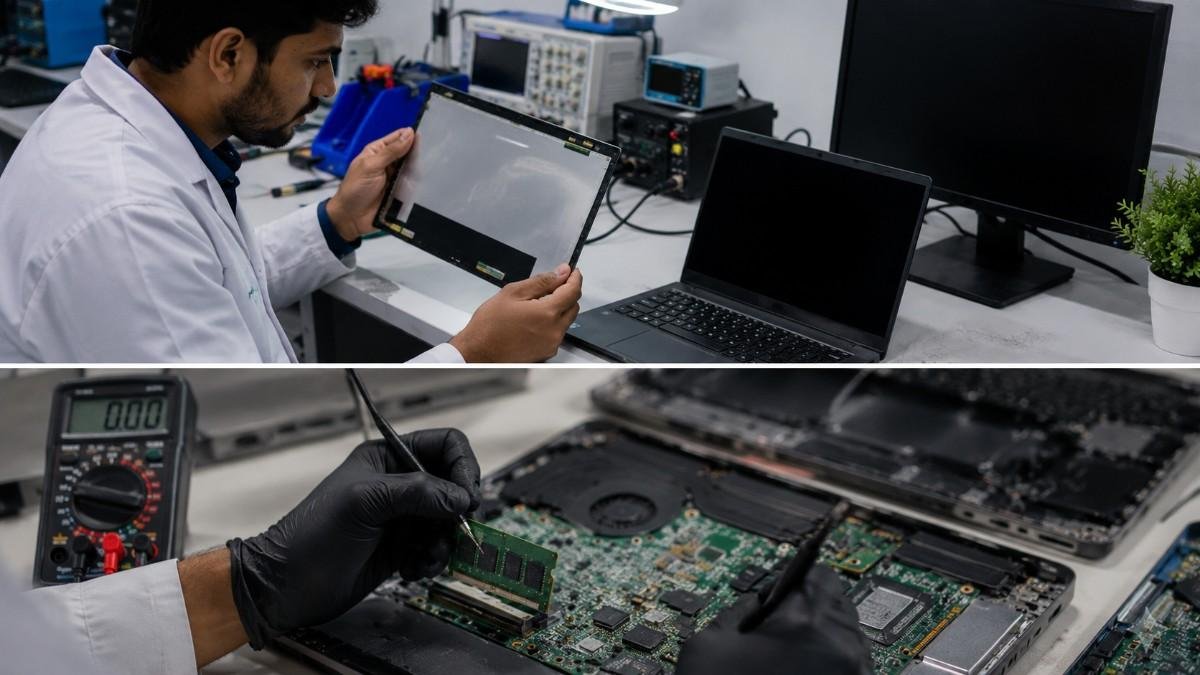
1. Faulty Display Panel
The LCD panel itself may have failed due to age, impact, or manufacturing defects.
Common signs include:
- Completely black display
- Faint image visible under a flashlight
- External monitor works normally
2. Loose or Damaged Display Cable
The display cable connects the motherboard to the laptop screen.
A loose or damaged cable may cause:
- Flickering screen
- Random black screen
- Display works only at certain angles
- Blank display after opening or closing the lid
3. Graphics Processing Unit (GPU) Failure
A damaged graphics processor may prevent the laptop from sending video to the screen.
Symptoms include:
- Black display
- Distorted graphics
- Colored lines
- External monitor also shows no image
4. RAM Problems
Faulty RAM is one of the most common hardware causes of startup failures.
Signs include:
- Black screen
- Continuous restart loop
- Beeping sounds
- No display after pressing the power button
5. SSD or Hard Drive Failure
A failed storage drive doesn’t always produce a “No Boot Device” message. Sometimes Windows begins loading but fails before displaying the desktop, leaving the screen black.
Possible warning signs include:
- Slow performance before failure
- Frequent freezing
- Blue screen errors
- SSD not detected
- Clicking sounds from a hard drive
If your laptop contains important files, avoid repeated restart attempts until the storage device has been checked.
6. Windows Update Problems
Occasionally, an interrupted or failed Windows update can leave the system unable to display the desktop correctly.
You may see:
- Black screen after login
- Black screen with cursor
- Automatic restart loop
- Failed startup after updating Windows
7. Graphics Driver Corruption
Damaged or incompatible graphics drivers can prevent Windows from displaying the desktop.
This commonly happens after:
- Driver updates
- Windows updates
- GPU software installation
- Incomplete installations
8. BIOS or UEFI Issues
Incorrect BIOS settings may prevent normal startup.
Examples include:
- Corrupted BIOS
- Failed BIOS update
- Incorrect graphics settings
- Boot configuration problems
9. Motherboard Failure
A damaged motherboard can interrupt communication between the CPU, GPU, RAM, and storage devices.
Possible signs include:
- Random shutdowns
- Black screen
- Power cycling
- No POST
- Charging issues
10. Liquid Damage or Physical Impact
Water spills and accidental drops can damage multiple internal components, including the display, motherboard, graphics processor, or storage device.
If liquid damage has occurred, turn the laptop off immediately and avoid trying to power it on repeatedly.
Step-by-Step Black Screen Troubleshooting
Before assuming your laptop requires major repairs, follow these safe troubleshooting steps.
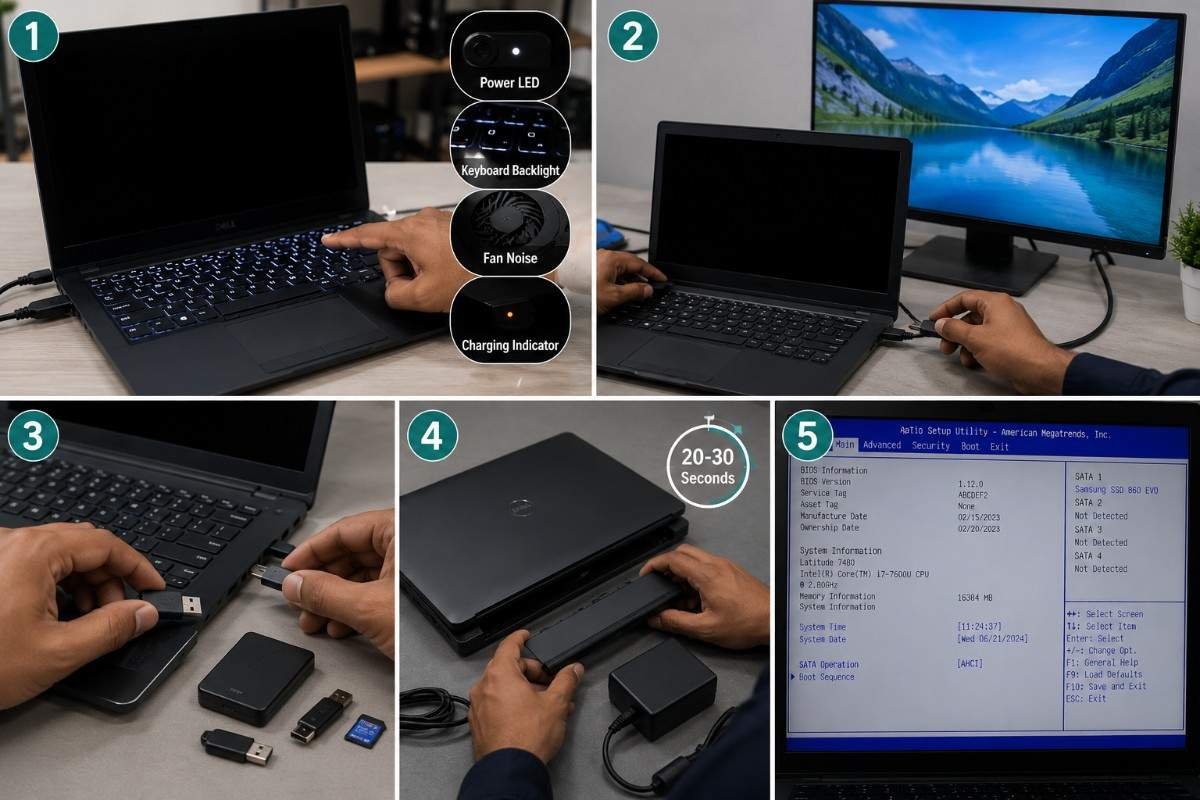
Step 1: Check Whether the Laptop Is Actually Running
Look for signs such as:
- Power LED
- Keyboard backlight
- Fan noise
- Charging indicator
- Startup sounds
If these are present, the laptop may still be functioning even though the display is black.
Step 2: Test an External Monitor
Connect your laptop to an external monitor or TV using HDMI, DisplayPort, or another compatible connection.
If the external display works, the problem is likely related to the laptop screen, display cable, or backlight rather than the storage drive.
Step 3: Disconnect External Devices
Remove:
- USB drives
- External hard drives
- Printers
- Docking stations
- Memory cards
Restart the laptop after disconnecting all peripherals.
Step 4: Perform a Power Reset
Turn off the laptop, disconnect the charger, and if possible, remove the battery.
Hold the power button for 20–30 seconds to discharge any residual power.
Reconnect the charger and try starting the laptop again.
Step 5: Check BIOS Access
If you can access the BIOS or UEFI settings, verify whether the SSD or hard drive is detected.
If the storage device is missing, avoid reinstalling Windows or formatting the drive until the issue has been diagnosed.
⚠️ Protect Your Data Before Attempting Repairs
If your laptop stores important business files, family photos, videos, research, or financial documents, your priority should be protecting that data—not rushing into repairs.
Avoid formatting the drive, reinstalling Windows or replacing storage hardware until you’ve confirmed that your files are safely backed up or recovered.
Professional evaluation can often identify the root cause without putting your data at additional risk.
Lenovo, ASUS, HP, Dell & Acer Laptop Black Screen? Here’s What to Do
A black screen issue can affect almost any laptop brand. While each manufacturer has its own hardware design, the basic troubleshooting steps are similar.
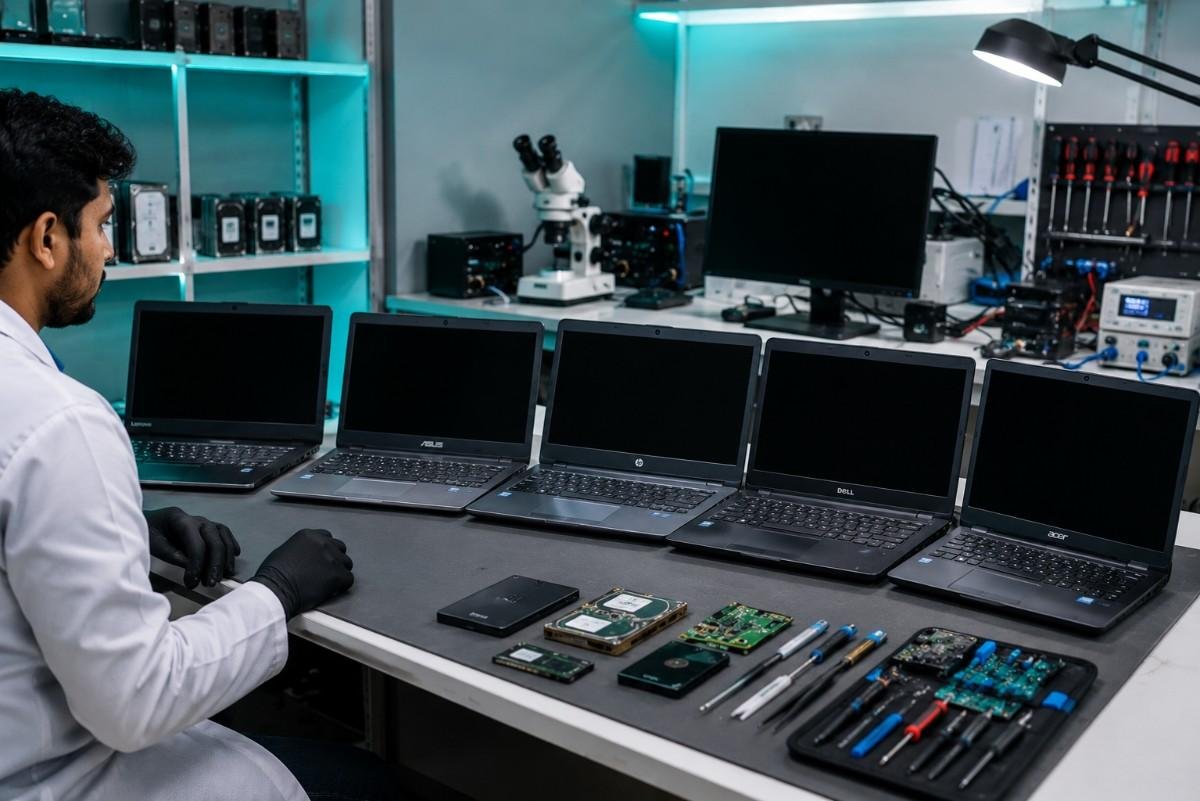
Let’s look at the most common brand-specific issues:
Lenovo Laptop Black Screen
Many users search for:
- Lenovo laptop black screen
- My Lenovo laptop screen is black but it’s running
- Lenovo laptop turns on but no display
Try these steps:
- Check if the power light is on.
- Connect an external monitor.
- Perform a power reset by holding the power button for 30 seconds.
- Disconnect all USB devices.
- Enter BIOS and verify whether the SSD is detected.
If the external monitor displays an image, the issue is likely with the laptop display, display cable, or backlight rather than Windows.
ASUS Laptop Black Screen
Common causes include:
- Graphics driver corruption
- Failed Windows update
- Faulty RAM
- Display cable damage
- SSD startup failure
Safe troubleshooting includes:
- Restart with external devices disconnected.
- Connect an external display.
- Enter Safe Mode if possible.
- Check BIOS detection.
- Avoid reinstalling Windows until your important files are secured.
HP Laptop Black Screen
HP laptops may experience black screen issues because of:
- BIOS corruption
- RAM problems
- Failed graphics initialization
- Windows startup corruption
- Storage device failure
If the Caps Lock or Num Lock LED blinks repeatedly, refer to HP’s diagnostic blink codes, as they can indicate hardware-related faults.
Dell Laptop Black Screen
Dell systems commonly experience black screen issues due to:
- GPU problems
- BIOS configuration
- Loose display cable
- SSD failure
- Motherboard faults
If Dell SupportAssist diagnostics are available, use them to identify hardware problems before attempting major repairs.
Acer & MSI Laptop Black Screen
For Acer and MSI laptops, begin by checking:
- Charger functionality
- External monitor output
- BIOS detection
- RAM seating
- SSD recognition
If the laptop powers on but the screen remains black, avoid assuming the display is faulty until the entire startup process has been checked.
Can You Recover Data from a Black Screen Laptop?

One of the most common questions users ask is:
“Can I recover my files if my laptop screen is black?”
The answer is Yes—in many situations, you can.
A black screen does not automatically mean your files are lost. The ability to recover your data depends on what caused the problem.
Scenario 1: Only the Display Has Failed
If the LCD panel, display cable, or backlight has failed, your SSD or hard drive is usually unaffected.
Once the display issue is resolved—or the storage device is accessed separately—your files are often fully recoverable.
Scenario 2: Graphics Driver or Windows Issue
If the black screen is caused by Windows or graphics drivers, repairing the operating system may restore normal access without affecting your personal files.
However, if the storage device shows signs of failure, recover your important data before making major system changes.
Scenario 3: SSD or Hard Drive Failure
A failing SSD or hard drive can sometimes appear as a black screen because Windows cannot complete the startup process.
Watch for these warning signs:
- SSD not detected in BIOS
- Clicking or grinding noises (HDD)
- Extremely slow startup
- Frequent freezing
- Blue Screen of Death before the issue
- “No Boot Device Found” errors
If you notice any of these symptoms, stop using the laptop immediately. Continued attempts to boot the system can worsen storage damage and reduce the chances of successful data recovery.
Scenario 4: Motherboard Failure
Even if the motherboard is damaged, the SSD or hard drive often remains intact.
Professional data recovery specialists can frequently access the storage device directly and recover important files without relying on the original laptop.
Common Mistakes That Can Cause Permanent Data Loss

Many users unintentionally make the situation worse by trying random fixes they find online.
Avoid these mistakes if your files are important.
Reinstalling Windows Immediately
Reinstalling Windows may overwrite valuable data, especially if the storage device is already failing.
Always attempt to recover important files first.
Formatting the SSD or Hard Drive
Formatting does not repair hardware failures.
Instead, it can permanently overwrite recoverable information.
Repeatedly Restarting the Laptop
If the storage device is physically damaged, repeated boot attempts place additional stress on the drive.
This can reduce the likelihood of a successful recovery.
Opening the Laptop Without Experience
Improper handling can damage:
- SSD connectors
- Hard drive interfaces
- Display cables
- Motherboard components
- Internal flex cables
Unless you’re experienced with laptop repairs, it’s safer to avoid disassembly.
Ignoring Early Warning Signs
A black screen is often the final symptom of an issue that has been developing for some time.
Earlier warning signs may include:
- Slow performance
- Frequent crashes
- Random freezes
- Blue screen errors
- Strange hard drive noises
- SMART warnings
- Startup delays
Addressing these symptoms early can help prevent more serious failures.
How to Prevent Black Screen Problems

While not every hardware issue can be avoided, these habits can reduce the risk:
- Keep regular backups of important files.
- Install graphics driver updates from trusted sources.
- Use an original charger.
- Protect the laptop from drops and impacts.
- Avoid blocking cooling vents.
- Clean dust from the cooling system periodically.
- Shut down the laptop properly instead of forcing power-offs.
- Monitor SSD or HDD health with reliable diagnostic tools.
- Use a surge protector or UPS during unstable power conditions.
- Address unusual noises or performance issues promptly.
Preventive maintenance is often the best way to avoid unexpected downtime and protect your data.
Why Choose Data Engineers for Black Screen Laptop Recovery?
When your laptop shows a black screen, the biggest concern is usually not the display—it’s the valuable data stored inside.
Data Engineers has been helping individuals, businesses, educational institutions, and government organizations recover critical data since 2010.
Our engineers specialize in recovering data from:
- Laptops with black screens
- Failed SSDs
- Damaged hard drives
- Motherboard-related storage failures
- Water-damaged laptops
- Windows startup corruption
- External hard drives
- RAID & NAS storage systems
- USB flash drives and memory cards
Why Thousands of Customers Trust Data Engineers
- Trusted by 10,000+ satisfied clients
- Class 100 ISO Certified Cleanroom Laboratory
- Over 20 years of combined industry expertise
- ISO 9001 & ISO 27001 Certified
- Up to 98% data recovery success rate
- No Recovery – No Charge policy
- 100% confidential data handling
- PAN India service support
Whether the issue is a faulty display, failed SSD, damaged hard drive or motherboard problem, our specialists use advanced diagnostics and professional recovery techniques to maximize the chances of recovering your important files safely.
Contact Data Engineers
📍 Address:
704, Meghdoot Building-94, Nehru Place, New Delhi
📞 Phone: +91-9818567981
📧 Email: support@dataengineers.in
🌐 Website: www.dataengineers.in
Conclusion
Seeing a black screen on your laptop or PC can be alarming, but it doesn’t always mean your device or your data is beyond recovery. Problems such as a faulty display, damaged graphics driver, RAM issue, SSD failure, or Windows startup corruption can all result in a blank screen while your files remain intact.
If your PC screen is black, your computer screen is black, or you’re dealing with persistent computer screen problems, avoid rushing into repairs that could put your data at risk. Understanding the root cause and taking the right steps early can make all the difference.
If the laptop contains valuable business documents, family memories, research data, or other important files, a professional diagnosis is often the safest path. Recovering your data should always take priority over reinstalling the operating system or replacing hardware.

Worldwide Leader in Data Recovery





Leave a Comment