
- 22 April, 2026
- Data Engineers
- 0 Comments
- Blog
External Hard Drive Not Showing Up on PC or Mac? Full Troubleshooting Guide (2026)
Facing the issue of an external hard drive not showing up can be frustrating—especially when important data is at stake. Whether you’re a business user, IT professional or student, this problem is quite common across both Windows PCs and Mac systems.
In this detailed guide, we’ll walk you through practical steps to fix external HDD not detected, understand possible causes and when to go for external drive recovery in India.
Why Your External Hard Drive Is Not Showing
Before jumping into fixes, it’s important to understand the root causes. Typically, the issue falls into one of these categories:
- Power or connectivity issues
- Driver or system-level problems
- File system corruption
- Physical damage to the drive
Each cause requires a different approach, so proper diagnosis is key.
Step 1: Rule Out Simple Causes (Cable, Port, Power)
Start with the basics. Many times, the issue is not serious.
Check These First:
- Try a different USB cable
- Switch to another USB port
- Connect the drive to another system
- Ensure the drive is getting proper power (especially for larger HDDs)
If your USB hard drive not recognized, these quick checks often solve the issue instantly.
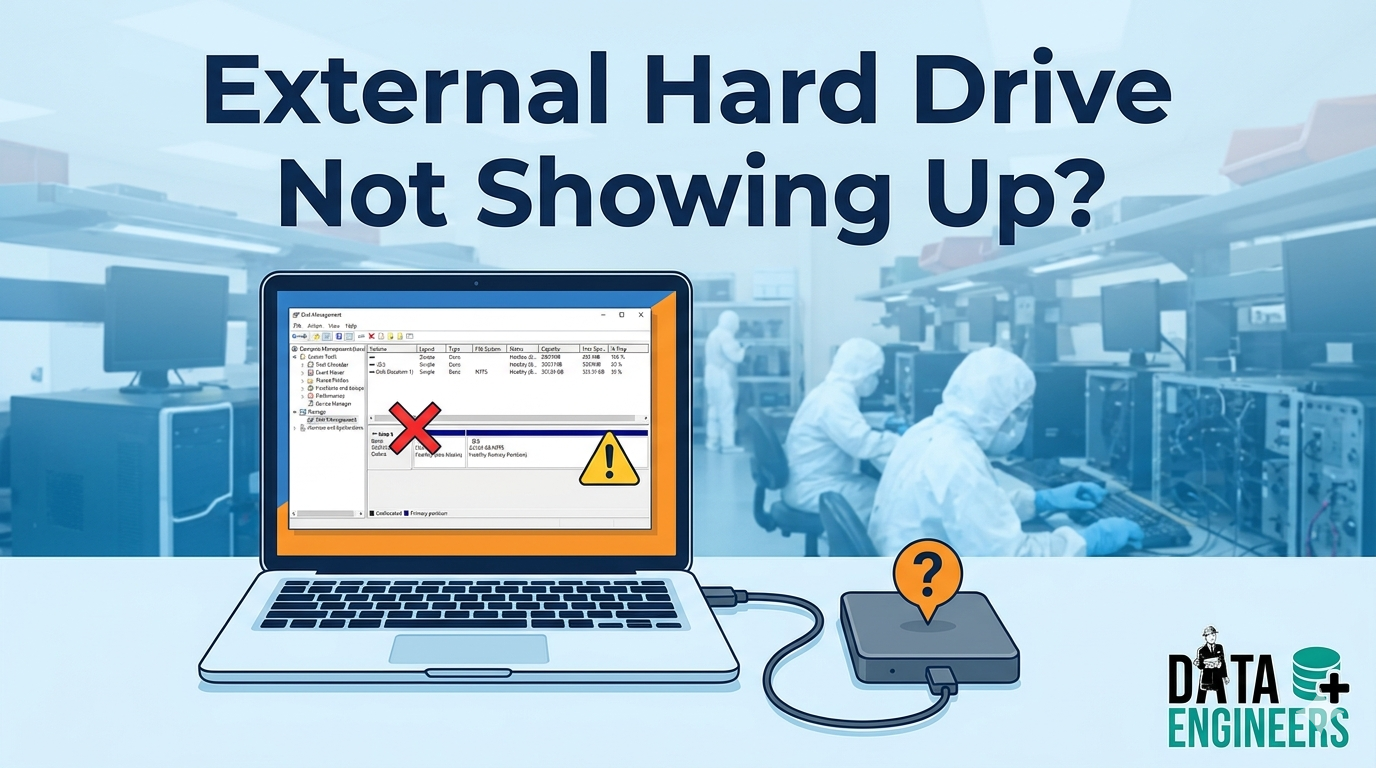
Step 2: Check Disk Management (Windows)
If your external drive is still not visible in “This PC,” check Disk Management.
Steps:
- Press Win + X → Select Disk Management
- Look for your external drive
Possible Scenarios:
- Drive shows but no letter assigned: Assign a drive letter
- Unallocated space: Partition needs to be created
- RAW format: Indicates file system corruption
This step is crucial for diagnosing external HDD not detected issues in Windows.
Step 3: Use Disk Utility (Mac Users)
For Mac users facing external hard drive not showing on Mac, follow this:
Steps:
- Open Disk Utility
- Locate your drive in the sidebar
If Detected:
- Click “Mount”
- Run First Aid to repair disk errors
If the drive appears greyed out, it may indicate corruption.
Step 4: When the Drive Makes Clicking Noise
If your hard drive is making a clicking or ticking sound, stop using it immediately.
Why This Happens:
- Internal mechanical failure
- Head crash inside the drive
- Motor or spindle issues
Continuing to use the drive can worsen the damage. In such cases, professional external hard drive recovery service is strongly recommended.
Step 5: File System Corruption vs Physical Damage
Understanding the difference can save your data.
File System Corruption
- Drive detected but not accessible
- Shows as RAW or unformatted
- Can often be repaired using software tools
Physical Damage
- Drive not detected at all
- Clicking noise
- Burnt smell or overheating
Physical issues require lab-level recovery, not DIY tools.
Step 6: Update or Reinstall Drivers
Sometimes, outdated or corrupted drivers cause detection issues.
Fix:
- Go to Device Manager
- Locate Disk Drives
- Update or uninstall and reinstall the driver
This is a common fix for USB hard drive not recognized problems.
Step 7: Try on Another Operating System
If your drive isn’t working on Windows, try it on Mac (or vice versa).
Sometimes, the issue is OS compatibility or file system mismatch (NTFS vs APFS).
When NOT to Attempt DIY Recovery
Avoid self-recovery if:
- The drive is making unusual sounds
- It is not detected anywhere
- Important business or personal data is involved
Using random tools can overwrite or permanently damage your data.
External Drive Recovery in India – When You Need Experts
If your data is critical, professional help is the safest route.
DATA ENGINEERS offers advanced external hard drive recovery in India, especially for complex cases like:
- Physically damaged drives
- Corrupted file systems
- Non-detecting USB drives
- Business-critical data recovery
Why Choose DATA ENGINEERS?
- Advanced recovery lab in Delhi
- Expertise in HDD, SSD and RAID recovery
- High success rate for external HDD recovery
- Strict data confidentiality
Get Your External Hard Drive Recovered Safely
If your external HDD is not detected and contains important data, don’t take risks.
Contact DATA ENGINEERS for expert support:
📍 704, Meghdoot Building-94, Nehru Place, New Delhi
📞 +91-991-013-2719
📞 +91-981-856-7981
📧 support@dataengineers.in
🌐 https://dataengineers.in/contact-us/
Final Thoughts
An external hard drive not showing up doesn’t always mean data is lost. In many cases, simple fixes can resolve the issue. However, when the problem is deeper—like physical damage or severe corruption—professional recovery becomes essential.
Act quickly, avoid risky DIY attempts and always keep backups to stay protected.
Bonus: Quick Troubleshooting Checklist
- Change USB cable/port
- Check Disk Management / Disk Utility
- Listen for unusual noises
- Update drivers
- Try another system
- Contact recovery expert if needed
Leave a Comment