
How to Unlock an Android Phone Without Losing Data (Pattern, PIN or Password Recovery Guide)
Android smartphones play a big role in daily life. From storing personal photos and videos to keeping important contacts, messages, documents and work files, everything stays inside one device. When an Android phone gets locked because of a forgotten pattern, PIN or password, the biggest fear for most users is losing data.
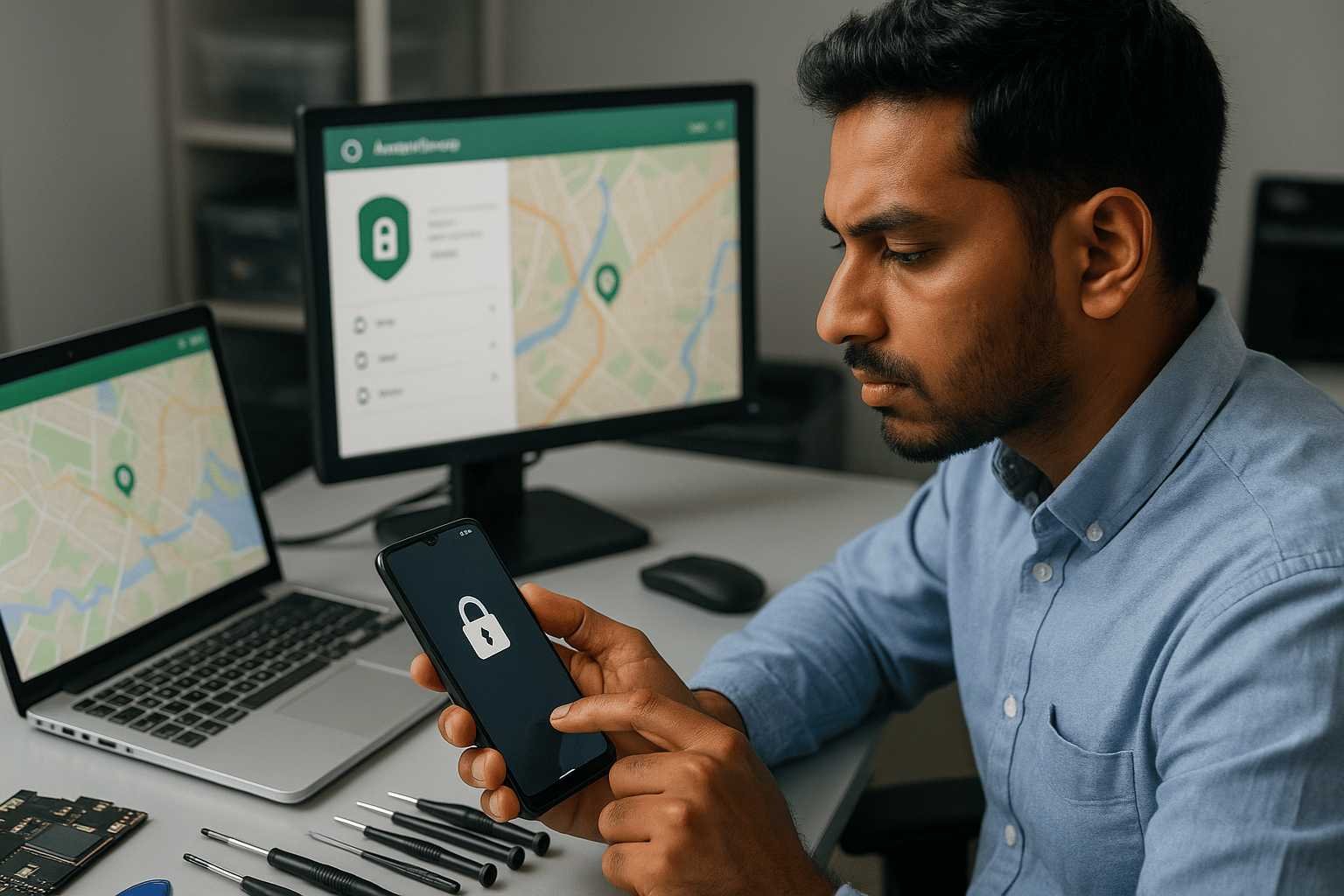
Many people think a factory reset is the only solution. That is not always true. In many situations, it is possible to unlock an Android phone without deleting data by using built-in recovery options, cloud-based tools or verified account access.
This guide explains safe and practical ways to unlock the Android lock screen without a reset, along with brand-specific guidance so users can better understand what works for their device.
Is It Really Possible to Unlock an Android Phone Without Data Loss?
Yes, it is possible in many cases. The success depends on the phone’s settings, brand and Android version.
Important Factors That Matter
- Android phone brand and model number
- Android version and latest security update
- Active internet connection (Wi-Fi or mobile data)
- Google account or Samsung account linked to the phone
- Features like Smart Lock, remote device control or account recovery
If one or more of these were enabled earlier android screen lock recovery becomes much easier and safer.
Best Methods to Unlock Android Phone Without Factory Reset
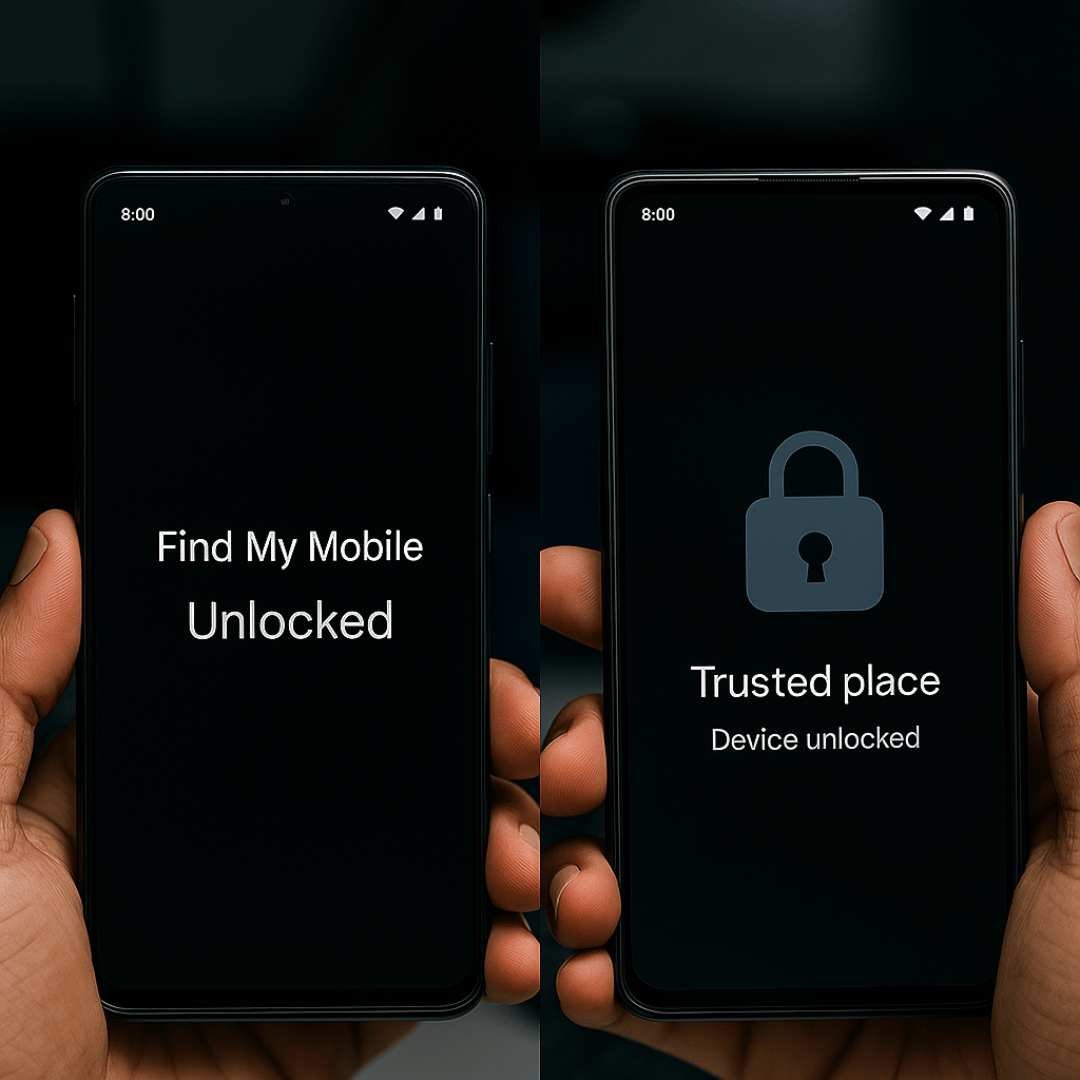
1. Unlock Android Phone Using Google Find My Device (Works on Most Android Brands)
Google Find My Device is an official service provided by Google. It helps locate, lock or secure a lost Android phone and can also be used when you forgot your Android password, PIN or pattern.
Supported Brands
- Samsung (Galaxy series)
- Xiaomi / Redmi / POCO
- Vivo
- Oppo
- Realme
- OnePlus
- Motorola
- Nokia
- Google Pixel
Steps to Recover Access
- Open Google Find My Device on another phone or computer
- Sign in using the same Google account linked to the locked phone
- Select your Android device from the list
- Choose the option to secure or lock the device
- Create a new temporary screen lock
- Enter the new lock on your phone to unlock it
This is one of the most reliable ways to unlock an Android phone without losing data, especially for users who remember their Google account details.
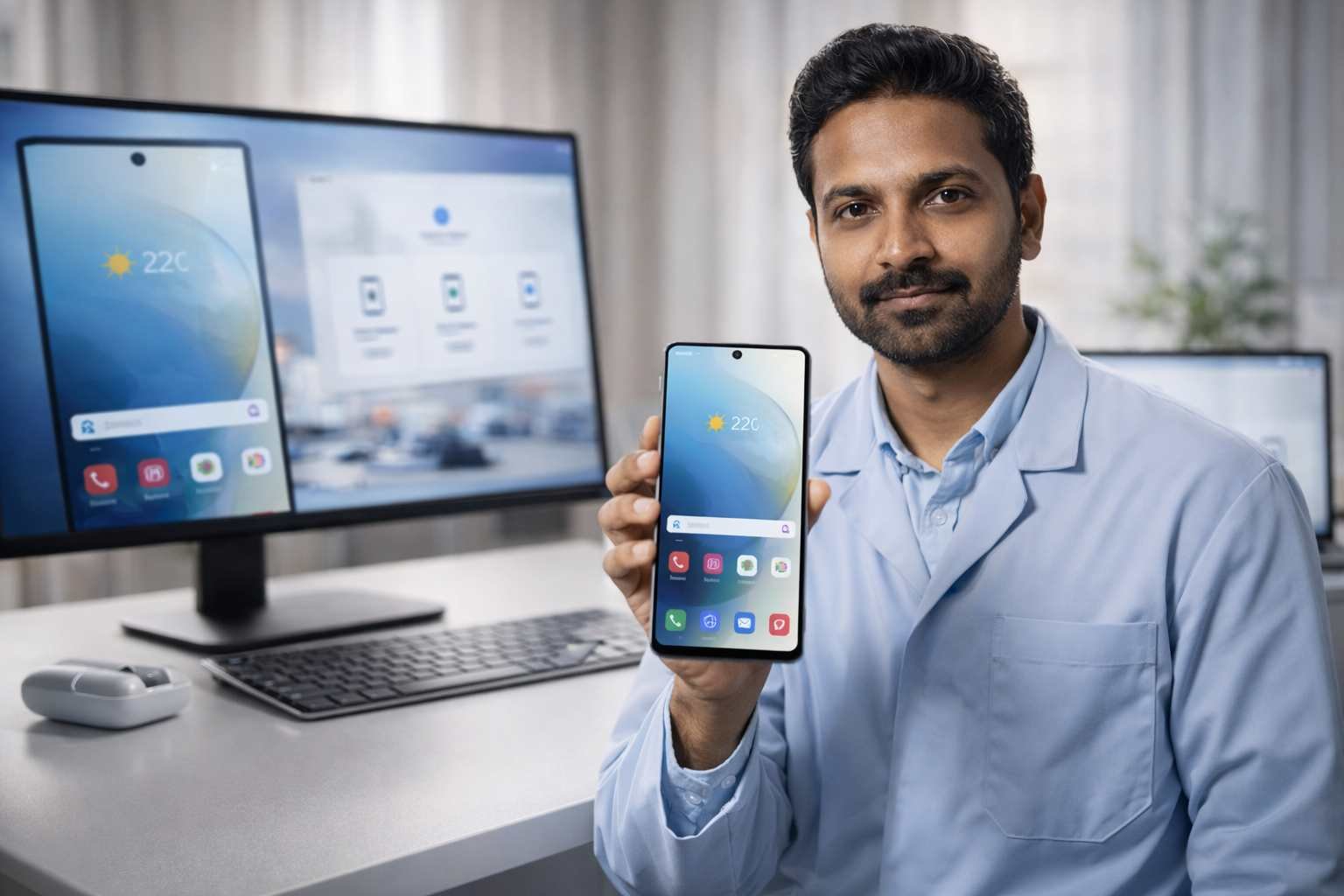
2. Samsung Find My Mobile (Samsung Phones Only)
Samsung devices offer an extra layer of recovery through Find My Mobile, which allows remote unlocking without deleting data.
Supported Samsung Models
- Galaxy S series
- Galaxy Note series
- Galaxy A series
- Galaxy M and F series
- Galaxy Z Fold and Flip
Why Samsung Users Prefer This Method
- No factory reset needed
- Works even if pattern or PIN is completely forgotten
- Uses official Samsung account verification
- Keeps apps, photos, videos and documents safe
The phone must be logged into a Samsung account and connected to the internet.
3. Backup PIN or Account Recovery Option (Mostly Older Android Versions)
Some Android devices show a recovery option after multiple wrong unlock attempts. You may see options like “Forgot Pattern” or “Sign in using Google account.”

Common on:
- Older Samsung phones
- Older Motorola and LG devices
- Early Xiaomi and Oppo models
If a backup PIN or linked account was set earlier, you can unlock the phone without data loss.
4. Smart Lock Feature (Trusted Unlock Method)
Smart Lock is an Android security feature that automatically unlocks the phone in trusted conditions.
Smart Lock Works When:
- You are at a saved location like home or office
- The phone is connected to a trusted Bluetooth device (car, smartwatch, earbuds)
- The phone is being carried (on-body detection)
If Smart Lock was enabled earlier, simply go to the trusted situation and the phone may unlock without entering the screen lock.
5. Android Screen Unlock Software (Selective Devices)
Professional Android screen unlock tools can remove screen locks such as pattern, PIN or password on certain models.

Usually Supports:
- Samsung (selected models)
- Xiaomi / Redmi
- Oppo
- Vivo
- Realme
Important Things to Know
- Data safety depends on phone model and Android version
- Some devices allow unlock without deleting files
- Always use trusted and verified software only
This option is recommended only when official recovery methods are not available.
What If None of the Unlock Methods Work?
If Google account recovery, Samsung unlock and Smart Lock fail, a factory reset may become the last option. A reset deletes local data but does not always remove cloud backups.
Before Doing a Factory Reset
- Check if photos, contacts and messages are backed up
- Confirm Google Drive or cloud sync status
- Avoid repeated reset attempts that may trigger security protection
Regular backups reduce the risk of permanent data loss.
How to Avoid Android Lock Problems in the Future
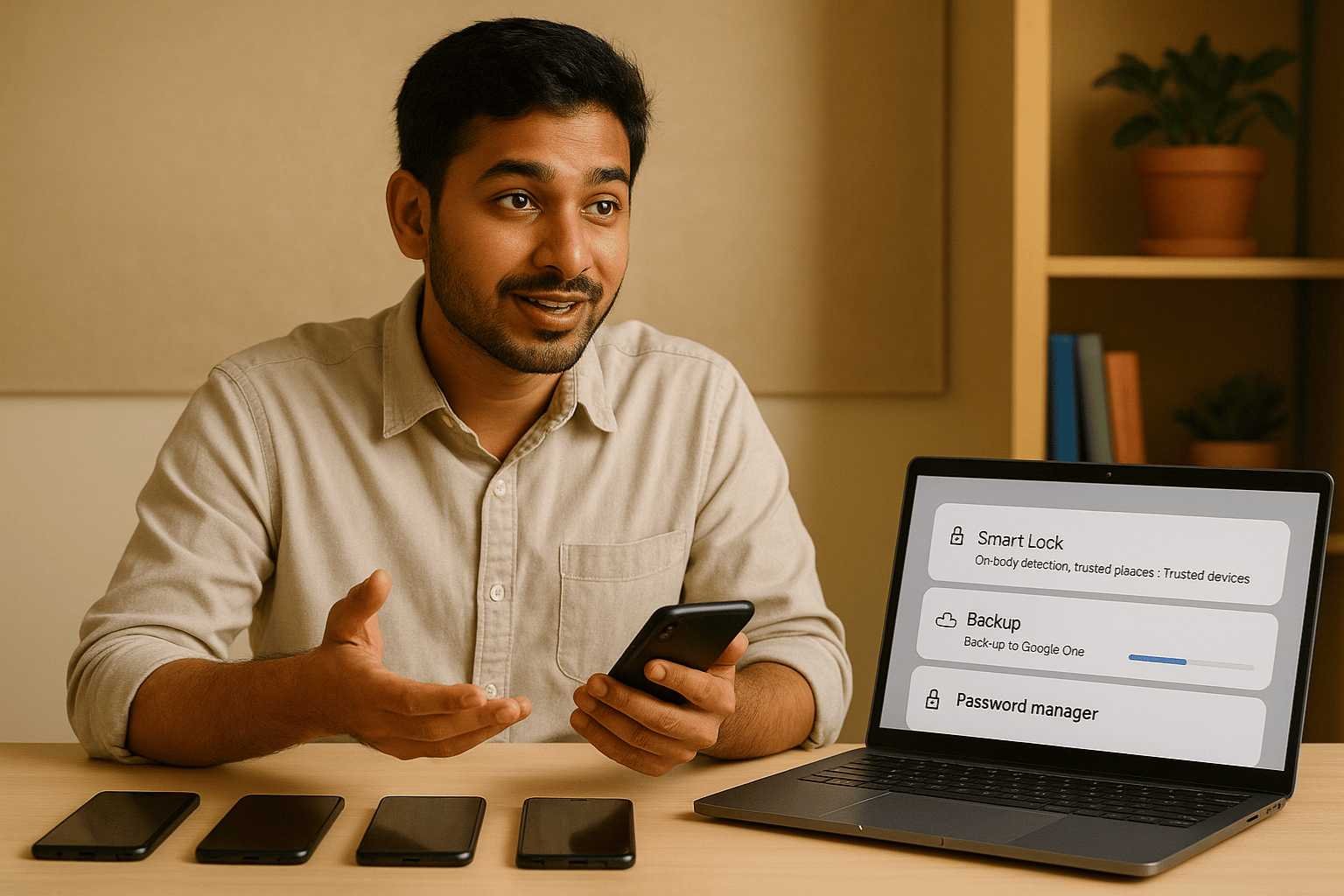
1. Enable Smart Unlock Options
Trusted locations and devices help prevent lockouts.
2. Keep Cloud Backup Turned On
Automatic backup protects important data even after reset.
3. Use a Password Manager
Safely stores PINs and passwords and reduces forgetfulness.
Need Professional Help to Unlock Your Android Phone?
If the standard recovery methods do not work or your device has important data, you may need expert assistance. Data Engineers provide professional mobile data recovery and Android unlock solutions using safe and verified processes.
Their team handles complex cases where phones are locked due to forgotten passwords, system errors or security issues, while focusing on data safety and device integrity.
When professional help becomes necessary: If your Android device has a damaged touchscreen, is bootloop-locked, or uses a third-party OEM lock you cannot bypass through standard methods, software-level unlocking will not work. Data Engineers’ certified technicians use hardware-level extraction methods — including JTAG, ISP pinout, and eMMC chip-off techniques — to access your data without triggering a factory reset. With a 98% success rate across Samsung, OnePlus, Realme, Vivo, and Oppo devices, we offer free diagnosis before any recovery begins.
Contact Data Engineers
📞 Call: +91-9818567981
📧 Email: support@dataengineers.in
🌐 Website: www.dataengineers.in
If you are unsure about the next step or want expert guidance, reaching out to a trusted recovery specialist can save time and prevent data loss.
Final Thoughts
Forgetting an Android screen lock can be stressful, but it does not always mean losing everything. With official recovery tools, linked accounts and smart security features, many users can unlock a locked Android phone without deleting data.
The best approach is to stay calm, follow verified recovery steps and avoid unsafe shortcuts. Keeping backups and account settings enabled today can save time and effort later.
Frequently Asked Questions
Can an Android phone be unlocked without losing data?
Yes, if remote unlock, Smart Lock or account recovery features are active.
Does a factory reset delete all data?
It removes local data, but cloud backups usually remain safe.
Is a Google account required to unlock Android?
In most cases, yes. It helps verify ownership.
Do Android unlock tools always keep data safe?
Not always. It depends on the device model and Android version.

Worldwide Leader in Data Recovery

Leave a Comment