• +91-981-856-7981
  • support@dataengineers.in
  • Mon – Sat: 11:00am – 7:00pm
Data Engineers Data Engineers
Call Us
  • Home
  • Services
    • Hard Disk Data Recovery
    • Mobile & Tablet Data Recovery
    • SSD Data Recovery
    • Pen Drive & Memory Card Data Recovery
    • CCTV Footage Data Recovery
    • NAS / SAN Data Recovery
    • Corrupted Files Data Recovery
    • Ransomware Virus Data recovery
    • Server Data Recovery
  • Forensics
    • Drone Forensics
    • RAID Forensics
    • Smartphone Forensics
    • Cryptocurrency Forensics
    • Malware Forensics
    • CCTV Video Footage Forensics
    • Deepfake Forensics
  • Training
  • About Us
  • Blog
  • Contact Us
Missing Files After Windows Update
  • 27 June, 2025
  • Data Engineers
  • 0 Comments
  • Blog

Recovering Data from Damaged Android Phones: JTAG, ISP & Chip-Off | Data Engineers

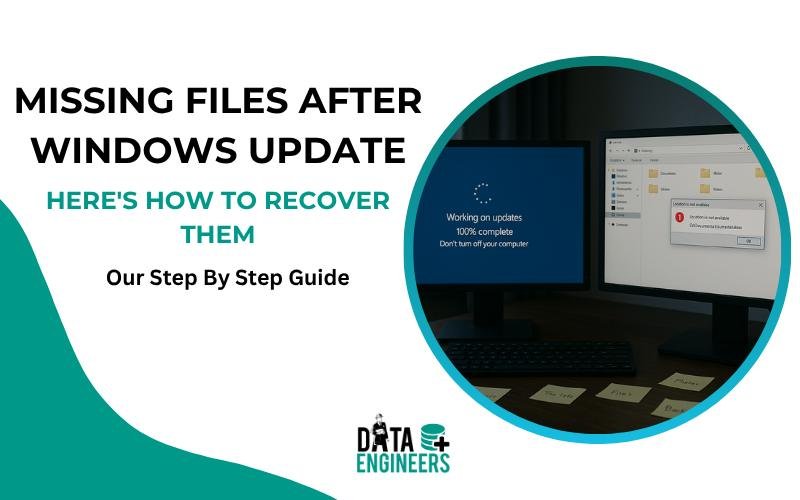
Running a Windows update is meant to enhance your PC’s performance and security. However, many users face a frustrating issue: missing files after Windows update. You might notice that your documents, photos, or downloads are gone or seem to have disappeared.

Table of Contents

Toggle
  • ❓ Why Do Files Disappear After a Windows Update?
  • ✅ How to Recover Missing Files After a Windows Update
    • 👤 1. Check for a Temporary User Profile
    • 🔎 2. Search for Lost Files Using Windows Search
    • 🕰️ 3. Restore Previous Versions (Shadow Copies)
    • 💽 4. Use File History or Backup to Recover Files
  • 🧰 Still Missing Files After Update?
  • ⚙️ Common Causes of File Disappearance
  • 🧾 Final Thoughts
  • 📞 Contact a Professional Data Recovery Service
  • Frequently Asked Questions
    • Where do files go after a Windows update?
    • Can files be recovered after the Windows.old folder is deleted?
    • My entire user profile disappeared after a Windows update — is this recoverable?
    • How long do I have to recover missing files after a Windows update?
    • Can files be recovered if Windows update caused a boot loop?
    • Worldwide Leader in Data Recovery
    • Professional Expertise with Long Term Experience
  • DATA ENGINEERS

Missing Files After Windows Update, data recovery-

Don’t panic—in most cases, your files haven’t been deleted. They’re simply hidden, moved, or temporarily inaccessible. Below is a step-by-step guide on how to recover files after a Windows update and prevent future data loss. Why Did Files Disappear After a Windows Update?

❓ Why Do Files Disappear After a Windows Update?

There are several reasons why your files may go missing:

👤 Temporary User Profile – Windows sometimes logs you into a temporary account where your personal files are missing.
🛠️ Corrupted or Replaced Profiles – The update may have damaged or replaced your original profile.
📦 Files Moved to Another Location – Your files might have been relocated to different folders or drives.
⚙️ System Settings Reset – Updates often reset certain settings, making files harder to locate.
💡 Most of the time, your data is still there—you just need the right method to find it.

✅ How to Recover Missing Files After a Windows Update
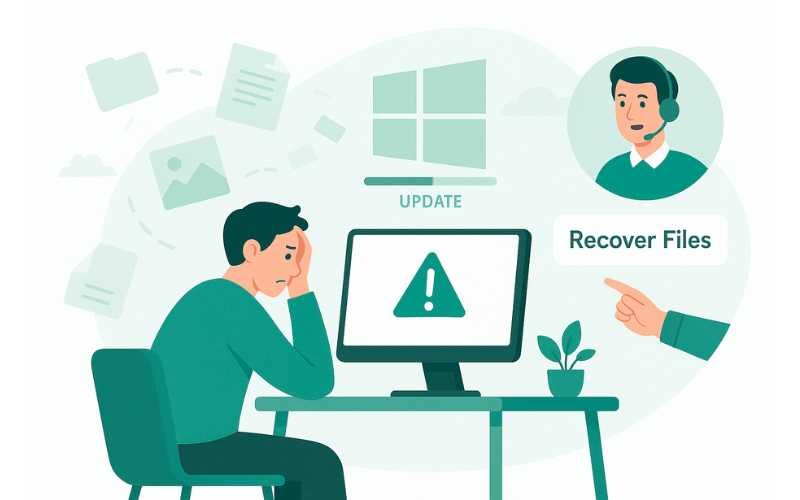
The Windows.old folder — your first recovery destination: When Windows performs a major update, it automatically creates a ‘Windows.old’ folder in the root of your C: drive containing your previous Windows installation and user files. This folder is automatically deleted after 30 days by Windows Storage Sense. If you find files missing immediately after an update, navigate to C:\Windows.old\Users\[YourUsername]\ to find your Desktop, Documents, Pictures, and Downloads folders intact. If 30 days have passed and Windows.old has been deleted, Data Engineers can still recover files using sector-level scanning.
 

How to Recover Missing Files-

👤 1. Check for a Temporary User Profile

If Windows has logged you into a temporary account, your files won’t be visible.

Steps:

📁 Press Windows + E to open File Explorer
🔍 Navigate to C:\Users\
🧾 Look for your original user folder
📂 Open folders like Desktop, Documents, or Downloads
📤 Copy your files back to your current profile

🔎 2. Search for Lost Files Using Windows Search

Use built-in search to find hidden or misplaced files.

Steps:

🔍 Press Windows + S
📄 Type file extensions like *.docx, *.jpg, or file names
📅 Sort by “Date Modified” to locate recent files

🕰️ 3. Restore Previous Versions (Shadow Copies)

If System Protection was enabled before the update, you can recover older versions.

Steps:

🖱️ Right-click the folder where files used to be
⏳ Select “Restore previous versions”
📆 Choose a restore point and click Restore

💽 4. Use File History or Backup to Recover Files

If you had File History or another backup system turned on, you’re in luck.

Steps:

⚙️ Go to Settings > Update & Security > Backup
🔁 Click “More options” > “Restore files from a current backup”
📂 Browse and restore your files

🧰 Still Missing Files After Update?

Sometimes, built-in recovery tools aren’t enough. Before using third-party tools, avoid making things worse:

❌ Do NOT save new files on the affected drive
❌ Do NOT install recovery software on the same drive

⚙️ Common Causes of File Disappearance

🗃️ old folder migration issues
🧼 Windows update wiped files
⚡ Fast startup causes missing files
💾 Change drive letter missing files
📥 Downloads disappeared after update
🖼️ Missing desktop icons after Windows update

🧾 Final Thoughts

Losing files after a Windows update can be frustrating—but it’s often fixable.

Start with:

👤 Checking your user profile
🔍 Searching your drive
🕰️ Using restore points or backups
🛠️ Avoiding overwriting your data
📞 Contacting professionals if needed

📌 Pro Tip: Always back up your important files before any Windows update. It’s the simplest way to prevent heartache later.

📞 Contact a Professional Data Recovery Service

Data Engineers and Professional Data Recovery Services

If your data is too valuable to lose, it’s time to bring in the pros.

🧑‍🔧 Data recovery specialists use advanced tools in secure labs to recover:

🧷 Deleted or overwritten files
📉 Corrupted drives
🔄 Files lost due to failed updates

They offer the best chance of a full recovery without causing more damage.

Frequently Asked Questions

Where do files go after a Windows update?

Files moved during an update are stored in C:\Windows.old for up to 30 days. If you cannot find them there, check if your user profile was reset (look in C:\Users for a new profile folder). Files not in Windows.old may require professional recovery.

Can files be recovered after the Windows.old folder is deleted?

Yes — often. Once Windows.old is deleted, the disk space is marked as free, but the file data remains until overwritten by new data. Data Engineers uses sector-level scanning to recover files from the original storage location before overwriting occurs.

My entire user profile disappeared after a Windows update — is this recoverable?

Yes. A missing user profile is a common side effect of corrupted Windows updates. The profile data (Desktop, Documents, Pictures, etc.) is typically still on the drive in the old profile folder. Data Engineers specialises in profile recovery after Windows update failures.

How long do I have to recover missing files after a Windows update?

Act immediately — every day that passes, the chance of overwrite increases. Windows.old is available for 30 days. After that, stop using the drive normally and contact Data Engineers — continued use overwrites recoverable file space.

Can files be recovered if Windows update caused a boot loop?

Yes. A boot loop after Windows update means the OS is failing to load, but the data drive is typically unaffected. Data Engineers can access the drive externally and recover all files without needing Windows to boot.

worldwide leader data engineers

Worldwide Leader in Data Recovery

Professional Expertise with Long Term Experience

Professional Expertise with Long Term Experience

Data Recovery Professionals

DATA ENGINEERS

704, 7th Floor, Meghdoot Building-94, Nehru Place, New Delhi, India
011-26426316 | +91-9910132719 | +91-9818567981
support@dataengineers.in
Call us for a free advice.

Specialists at retrieving data from all types of hard drive and phone storage media, today Data Engineers has grown into the India’s largest and most technically capable data recovery company.

Get Free Quote
Tags:
files Disappeared After Updatemissing Files Data Recoverywindows Update Deleted My Fileswindows Update File Recovery
Prev PostHard Drive Not Spinning? Causes, Fixes & Data Recovery | Data Engineers
Next PostWhat Are Signs of SSD Failure: How to Identify and Prevent Data Loss

Leave a Comment Cancel Comment

Your email address will not be published. Required fields are marked *

Recent Posts

  • Data Recovery Kahan Karwaye? Delhi, Nehru Place & India Mein Right Recovery Center Kaise Choose Karein
  • Laptop Not Turning On? Don’t Panic! Causes, Fixes & Data Recovery Explained
  • Hard Drive Short DST Check Failed: Causes, Fixes & Hard Drive Recovery Guide
  • How to Retrieve Deleted Text Messages on Android & iPhone (2026 Complete Guide)
  • No Boot Device Found Error: Causes, Fixes & Data Recovery Solutions

Recent Comments

No comments to show.

Popular Posts

data-recovery-kahan-karwaye-delhi-nehru-place-india-right-recovery-center-hard-drive-ssd-recovery-data-recovery-monitoring-dataengineers-data-recovery-center-www.dataengineers.in
10 August, 2026 / Blog
Data Recovery Kahan Karwaye? Delhi, Nehru Place & India Mein Right
Laptop Not Turning On Don’t Panic! Causes, Fixes & Data Recovery Explained www.dataengineers.in
27 July, 2026 / Blog
Laptop Not Turning On? Don’t Panic! Causes, Fixes & Data Rec
Hard Drive Short DST Check Failed Causes, Fixes & Hard Drive Recovery Guide www.dataengineers.in
27 July, 2026 / Blog
Hard Drive Short DST Check Failed: Causes, Fixes & Hard Drive Reco

Tags

Cryptocurrency Password Recovery damaged phone recovery Data Recovery Data Recovery Cost Data Recovery Near ME data recovery services Data recovery software Data Recovery Solutions Data Recovery Tips Deleted File Recovery Deleted Files Recovery Digital Forensics donor matching guide Drone Forensics Emergency Data Recovery Ethereum Keystore Password Recovery External Hard Drive Recovery hard disk data recovery Hard Disk Recovery Hard Drive Data Recovery hard drive data recovery tips Hard Drive Failure Hard Drive Not Detected hard drive PCB repair Hard Drive Recovery Hard Drive Recovery Near Me Hard Drive Repair HDD data recovery HDD Recovery iphone data recovery iPhone Passcode Bypass Laptop Data Recovery memory card data recovery Mobile Forensics Password Unlock phone data recovery RAID server recovery Recover Deleted Data SATA To USB Adapter Server Data Recovery smartphone password recovery SSD data recovery SSD Not Detected VeraCrypt recovery •

Categories

  • Blog

With Data Engineers, you can be assured of a seamless experience for data recovery services that are quick, easy and confidential with top-quality results.

    Our Services

    • Hard Disk Data Recovery
    • Mobile & Tablet Data Recovery
    • SSD Data Recovery
    • Pen Drive & Memory Card Data Recovery
    • CCTV Footage Data Recovery
    • NAS / SAN Data Recovery
    • Server Data Recovery

    Forensics Services

    • Damage Drone Forensics
    • Damaged RAID Forensics
    • Smartphone Forensics
    • Deepfake Forensics Investigation
    • CCTV Forensics Data Recovery
    • Malware Forensics Investigation
    • Cryptocurrency Forensics Investigation

    Useful Links

    • Home
    • Services
    • Training
    • FAQ
    • About Us
    • Contact Us
    • Privacy Policy
    • Terms & Conditions

    Locations: Mumbai | Delhi | Bengaluru | Chennai | Kolkata | Hyderabad | Pune | Ahmedabad | Surat | Jaipur | Lucknow | Kanpur | Nagpur | Indore | Thane | Coimbatore | Visakhapatnam | Bhopal | Patna | Vadodara | Ludhiana | Agra | Nashik | Madurai | Chandigarh |

    support@dataengineers.in Drop Us a Line
    +91-981-856-7981 Call Us Now
    704, Meghdoot Building-94, Nehru Place, New Delhi, India Get Direction
    Copyright 2026 Data Engineers, All rights reserved.
    Manage Consent
    To provide the best experiences, we use technologies like cookies to store and/or access device information. Consenting to these technologies will allow us to process data such as browsing behavior or unique IDs on this site. Not consenting or withdrawing consent, may adversely affect certain features and functions.
    Functional Always active
    The technical storage or access is strictly necessary for the legitimate purpose of enabling the use of a specific service explicitly requested by the subscriber or user, or for the sole purpose of carrying out the transmission of a communication over an electronic communications network.
    Preferences
    The technical storage or access is necessary for the legitimate purpose of storing preferences that are not requested by the subscriber or user.
    Statistics
    The technical storage or access that is used exclusively for statistical purposes. The technical storage or access that is used exclusively for anonymous statistical purposes. Without a subpoena, voluntary compliance on the part of your Internet Service Provider, or additional records from a third party, information stored or retrieved for this purpose alone cannot usually be used to identify you.
    Marketing
    The technical storage or access is required to create user profiles to send advertising, or to track the user on a website or across several websites for similar marketing purposes.
    • Manage options
    • Manage services
    • Manage {vendor_count} vendors
    • Read more about these purposes
    View preferences
    • {title}
    • {title}
    • {title}