
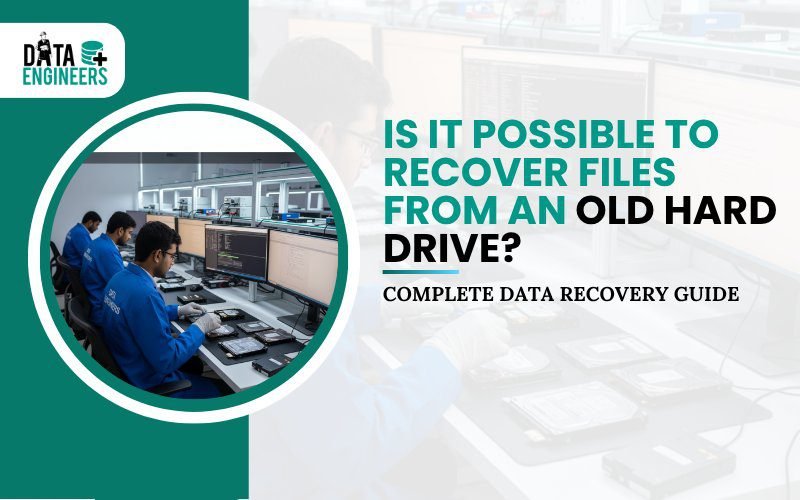
Is It Possible to Recover Files from an Old Hard Drive in 2026? A Complete Data Recovery Guide
Finding an old hard drive can bring back hope. It may contain lost photos, videos, documents, work files or personal data you thought were gone forever.
The good news is simple: yes, files can often be recovered from old hard drives, even if they were deleted, the drive was formatted or the system is asking to format it.

In 2026, professional data recovery techniques make it possible to retrieve data from external hard drives, laptop drives and desktop hard disks—provided the drive is handled correctly.
This guide explains how file recovery works, what affects success and how to avoid permanent data loss.
Can Files Be Recovered from an Old Hard Drive?
In many cases, yes.
When files are deleted or a drive is formatted, the data is usually not erased immediately. The system only removes the reference to the files. The actual data often remains until new information overwrites it.
File recovery is possible if:
- Files were deleted accidentally
- The drive was formatted but not reused heavily
- The drive is readable and not severely damaged
Recovery becomes difficult only when data has been overwritten or the drive has serious mechanical damage.
Step 1: Identify the Type of Old Hard Drive
Different hard drives require different handling methods.

External USB Hard Drive
External drives are the easiest to work with.
- Connect the drive via USB
- If the system asks to format it, do not proceed
- Deleted or formatted files are often still recoverable
Laptop Hard Drive (2.5-inch SATA or IDE)
Laptop drives must be removed carefully.
- Remove the drive from the laptop
- Use a USB-to-SATA or USB-to-IDE adapter or enclosure
- Connect it as an external device
Even if the system shows the drive as inaccessible, data may still be intact.
Desktop Hard Drive (3.5-inch SATA or IDE)
Desktop drives need external power.
- Use a powered adapter or enclosure
- Avoid repeated connection attempts
- Do not initialize or format the drive
Step 2: Check the Drive’s Condition
Once connected, observe how the drive behaves.

- Spinning normally: The drive is receiving power
- Detected but inaccessible: Likely logical damage
- Clicking, grinding or not spinning: Possible physical damage
Logical vs Physical Damage
- Logical damage includes deleted files, formatting, partition loss or file system corruption. Recovery chances are high.
- Physical damage includes head failure, platter damage or electronic faults. Professional recovery is required.
Avoid repeated attempts if the drive makes unusual sounds.
Step 3: Recovering Deleted or Formatted Files
Files can often be recovered even if:
- They were deleted
- The drive was formatted
- The system is asking to format the drive
Professional recovery methods scan the drive at a low level and locate files that are no longer visible to the operating system. This process does not require formatting the drive.
Important rule: Always recover files to a different storage device. Writing data back to the same drive can overwrite recoverable files.
Step 4: When Professional Data Recovery Is Required
Professional help is strongly recommended if the drive:

- Does not spin
- Makes clicking or grinding sounds
- Overheats quickly
- Is not detected at all
- Contains critical or irreplaceable data
Physical recovery requires specialized tools and controlled environments to avoid permanent data loss.
Data Engineers provides professional hard drive recovery services for both logical and physical failures, including advanced forensic cases.
Step 5: Back Up Recovered Files Immediately
After successful recovery:
- Create at least two backups
- Use external drives or secure cloud storage
- Organize recovered data clearly
- Avoid reusing the old drive immediately
Backup is the only real protection against future data loss.
Extra Tips to Improve Recovery Success

- Handle old drives carefully
- Avoid drops, moisture or heat
- Use the correct adapter or enclosure
- Never format the drive before recovery
- Avoid writing any new data to the drive
- Stop immediately if unusual noises appear
Small mistakes can permanently destroy recoverable data.
Final Thoughts
Even if your old hard drive:
- Was formatted
- Shows deleted files
- Appears inaccessible
- Asks to be formatted
…your data is often still recoverable.
The keys to success are simple:
- Connect the drive safely
- Avoid overwriting data
- Recover files before reuse
- Seek professional help for physical damage
Old hard drives often hold irreplaceable memories and important information. Careful handling gives you the best chance of getting them back.
Frequently Asked Questions
Can files be recovered after formatting a hard drive?
Yes. Formatting removes the file system, not the data itself, unless overwritten.
What if my computer asks to format the drive?
Do not format it. This usually indicates file system damage, not data loss.
Can deleted files from an old laptop hard drive be restored?
Yes. Deleted files often remain recoverable until overwritten.
Can recovery work on both external and internal hard drives?
Yes. External, laptop and desktop hard drives are all recoverable using proper methods.

Worldwide Leader in Data Recovery

Leave a Comment